Device Wall Instructions
1. Log in with the Vendor Account (PC)
Open the following address in a PC browser and log in with the vendor account:
https://static-admin.thingsrun.com/#/home/index
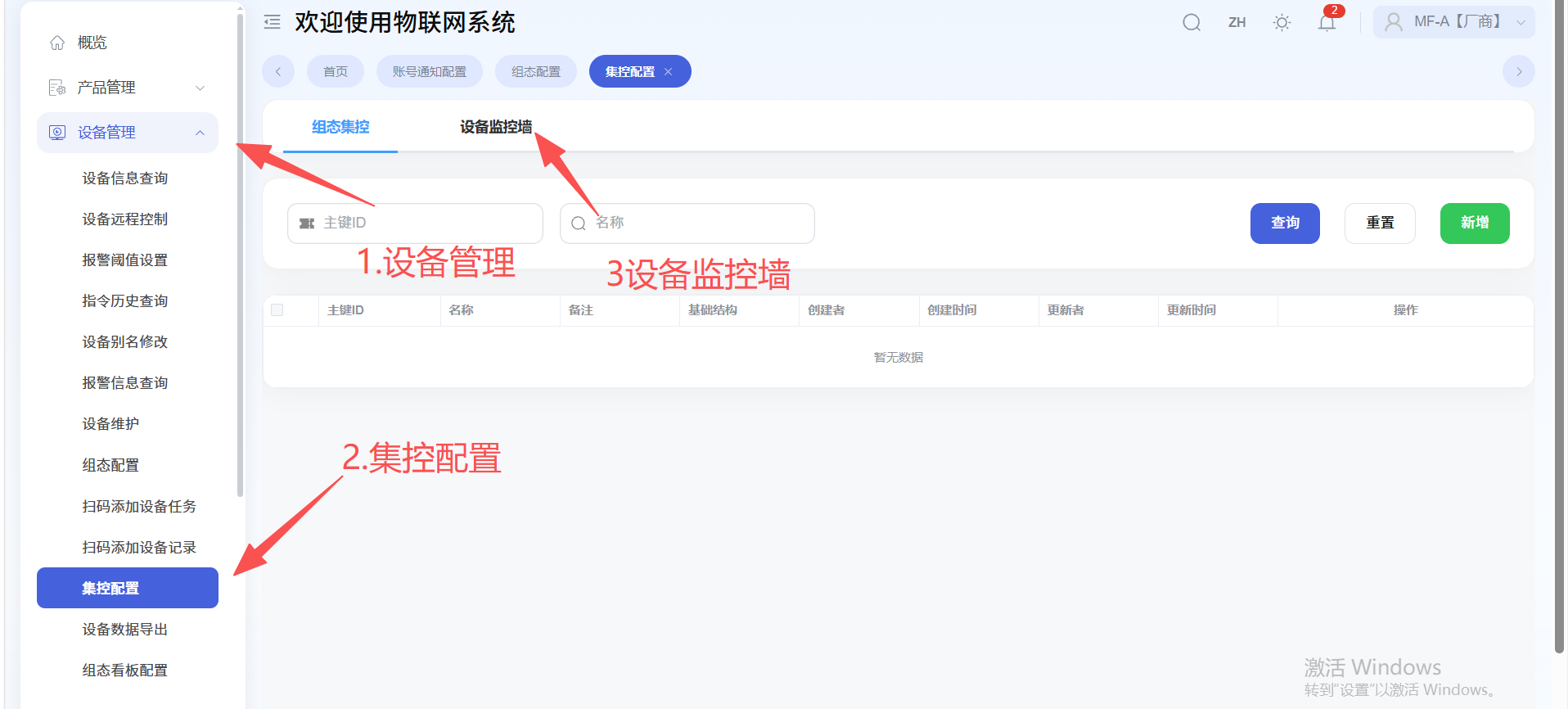
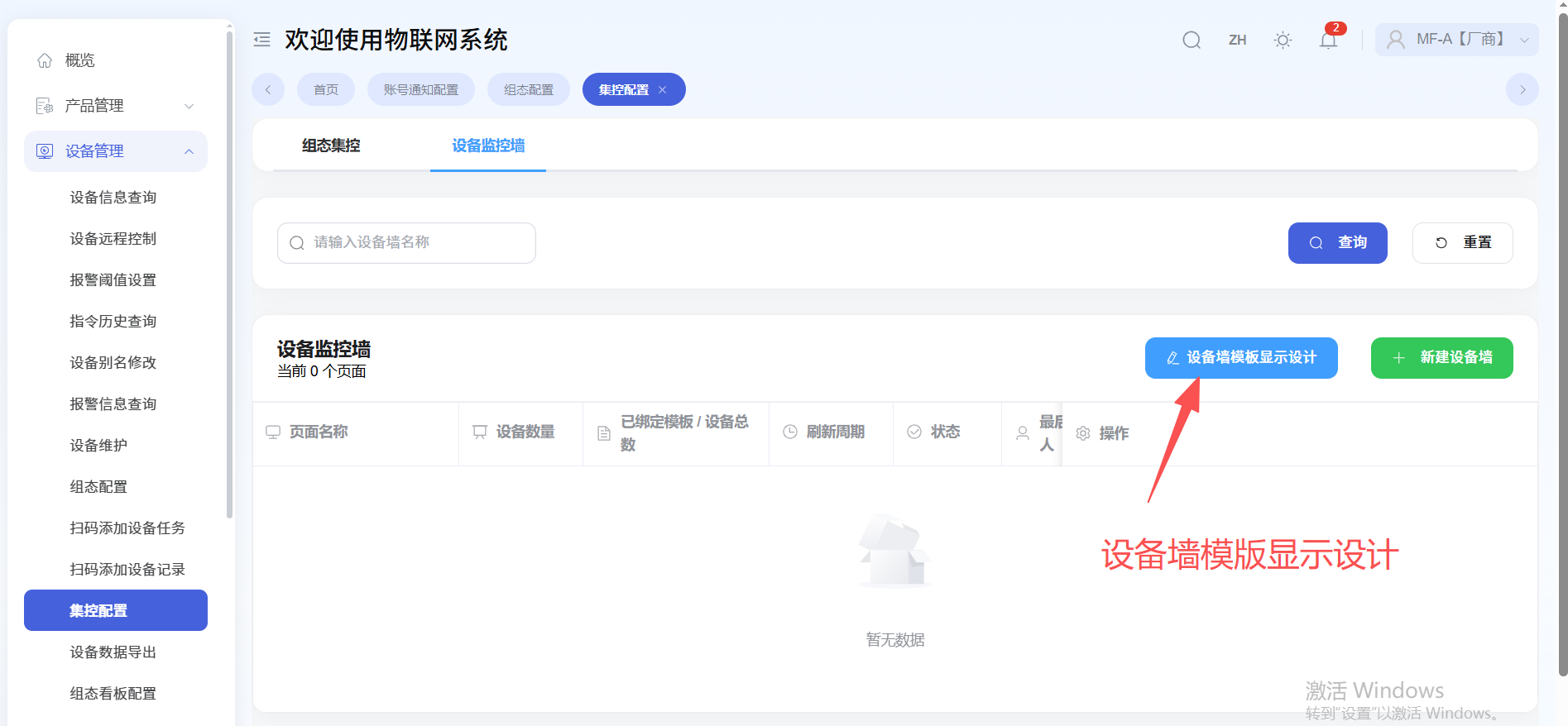
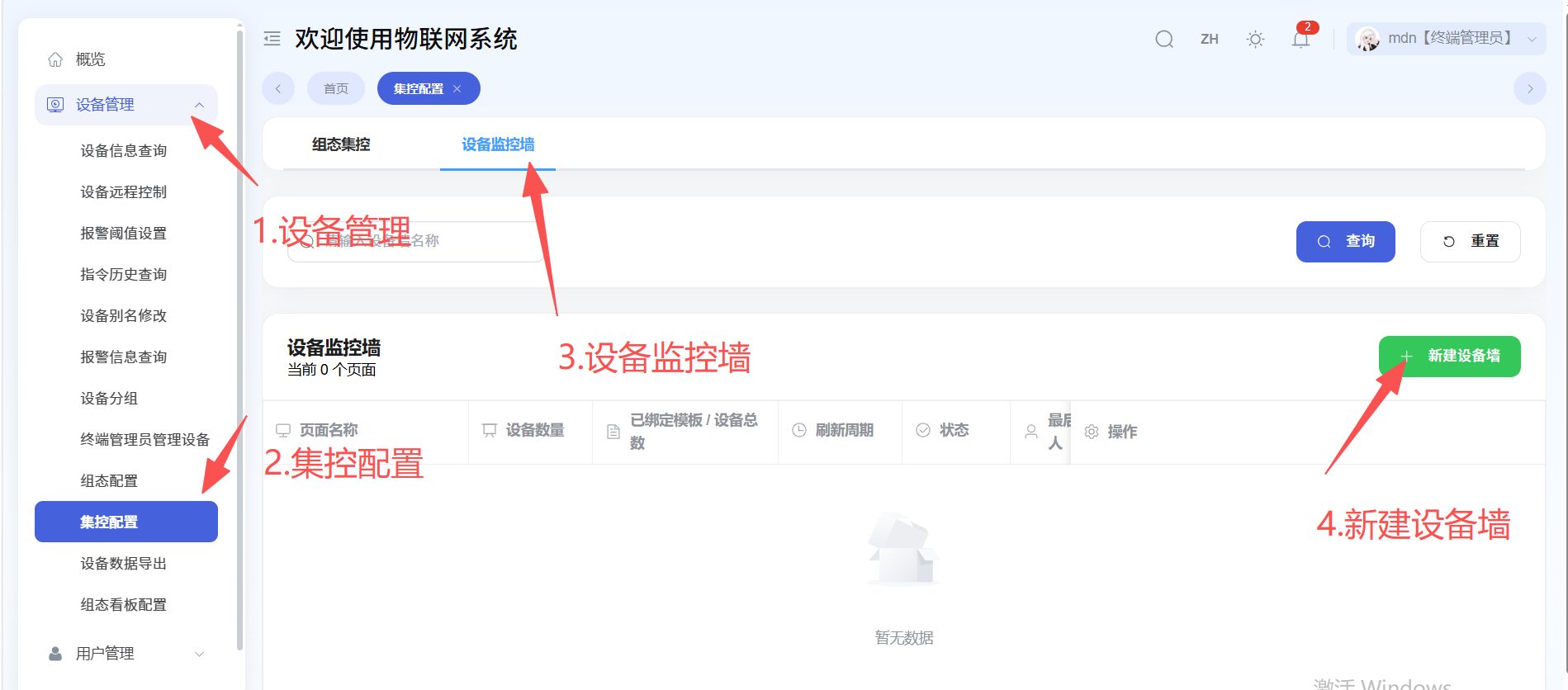
After logging in, click "Centralized Control Configuration" under "Device Management" on the left, then select "Device Monitoring Wall".
2. Create a Device Wall Template
2.1 Enter Template Design
Click "Device Wall Template Design".
2.2 Add Product Binding
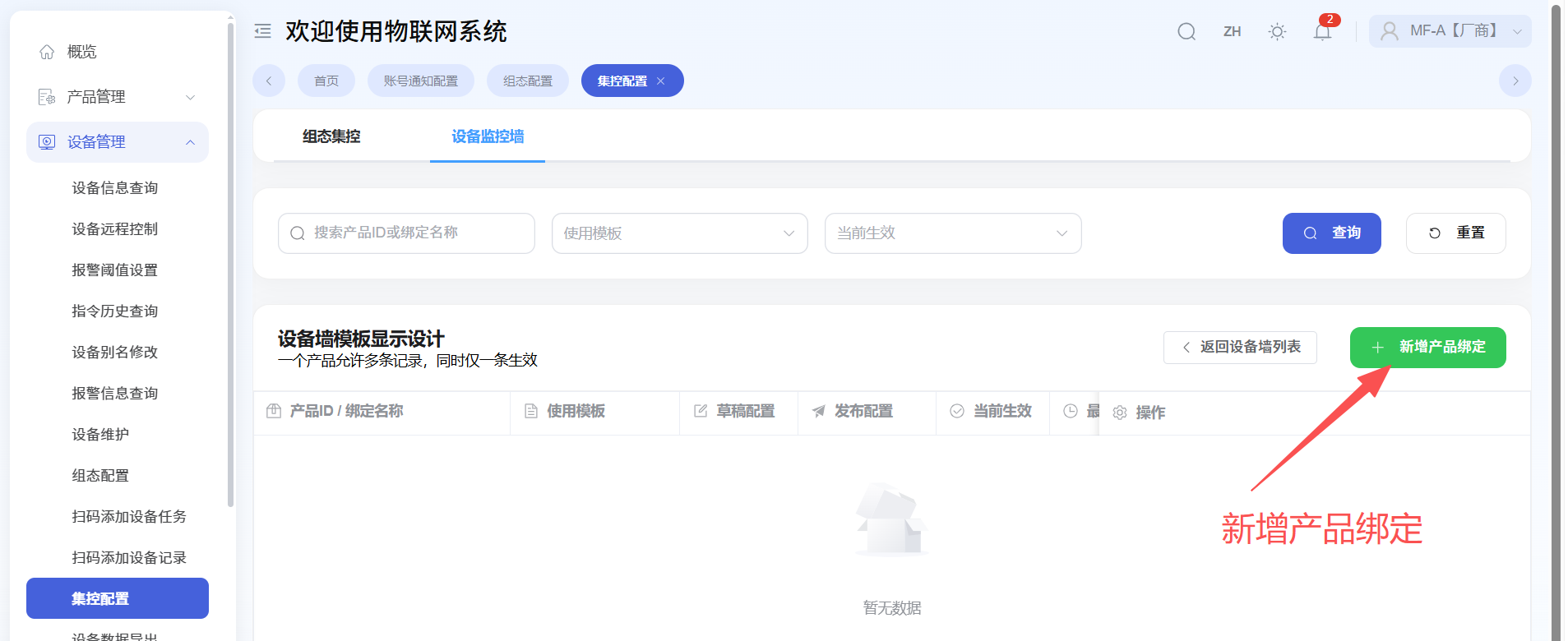
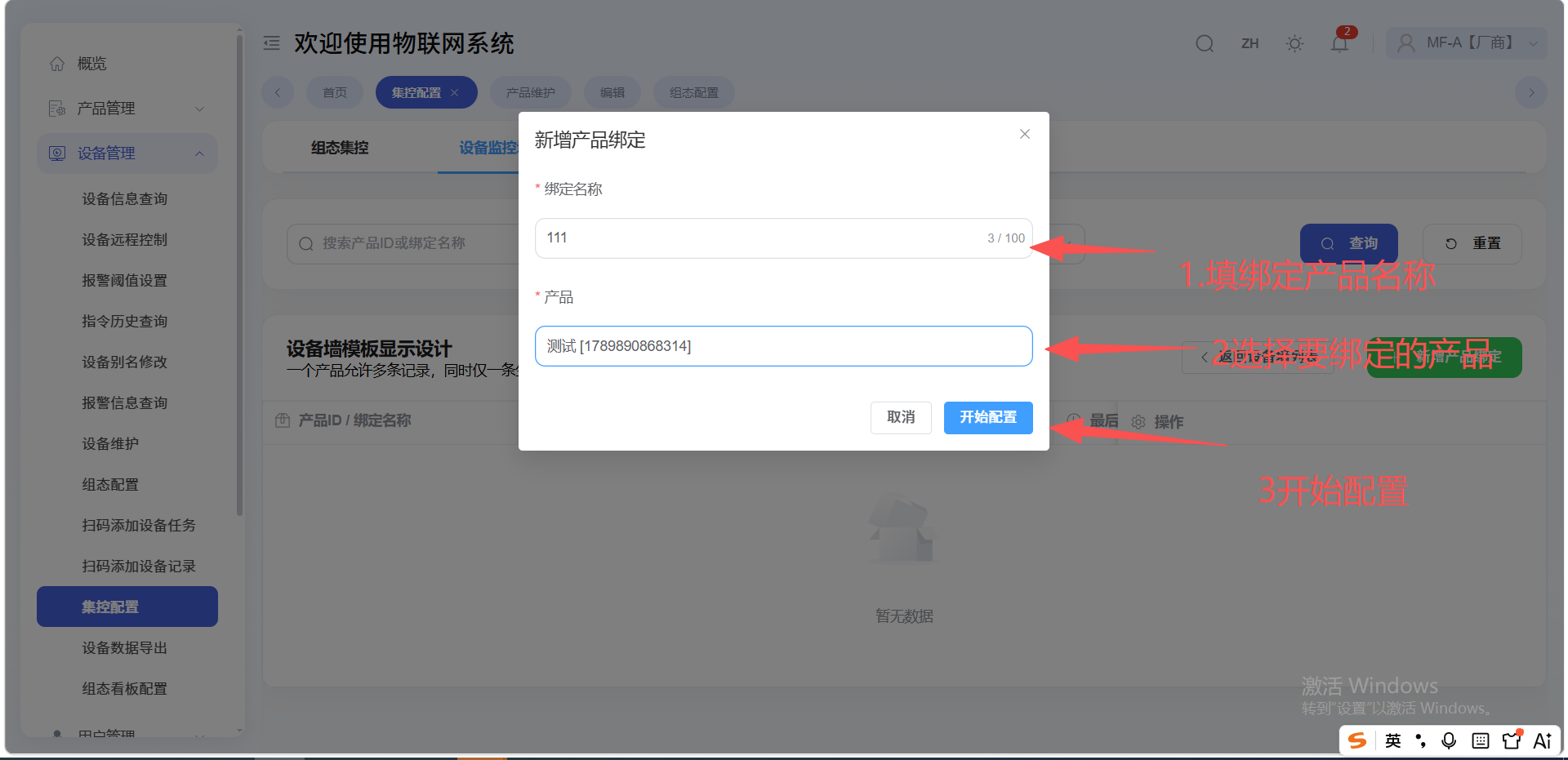
Click "Add Product Binding" and fill in the product to bind to this template:
- Enter the binding product name (binding name).
- Select the product to bind.
- Click "Start Configuration".
A product can have multiple binding records, but only one takes effect at a time.
2.3 Edit Template
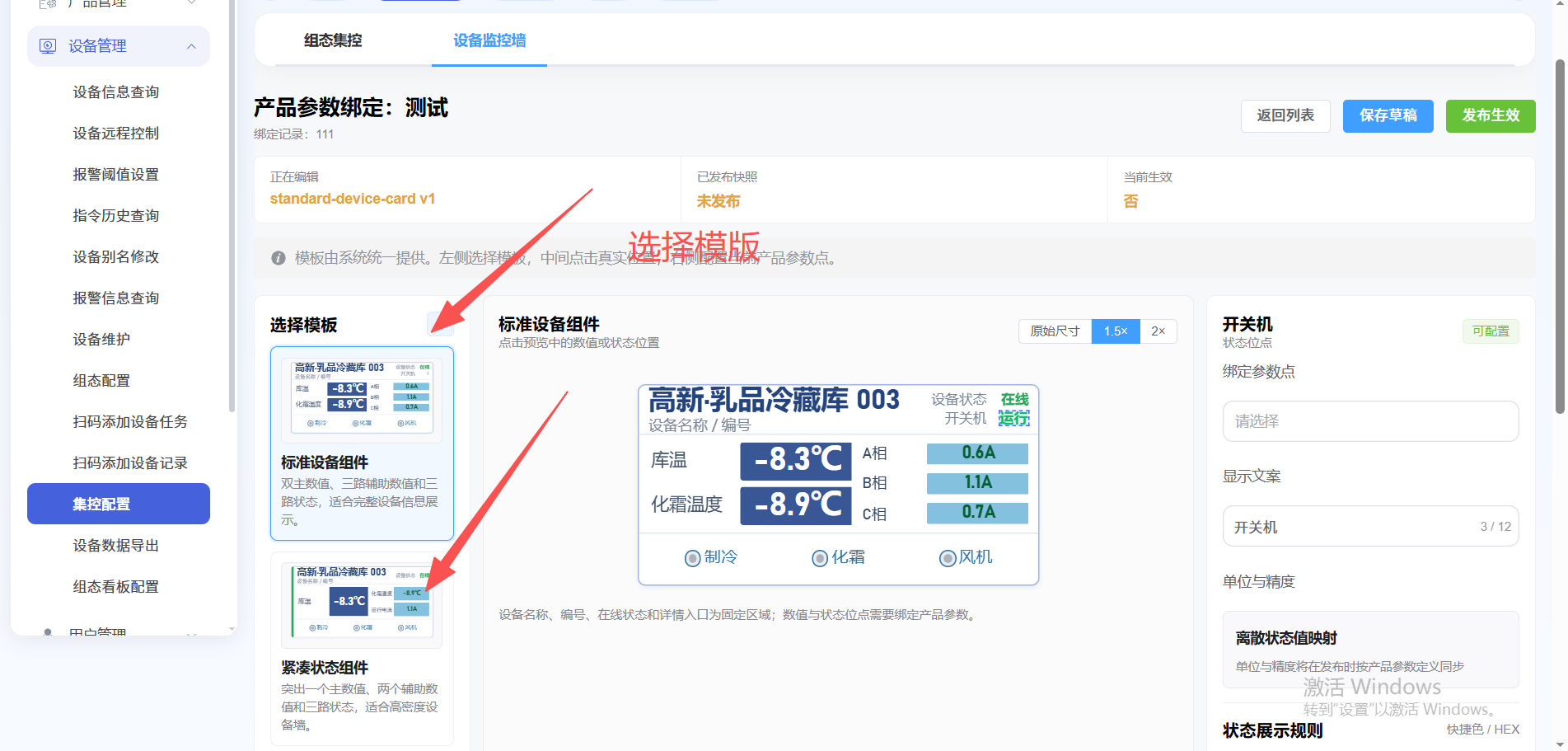
- Two templates are available:
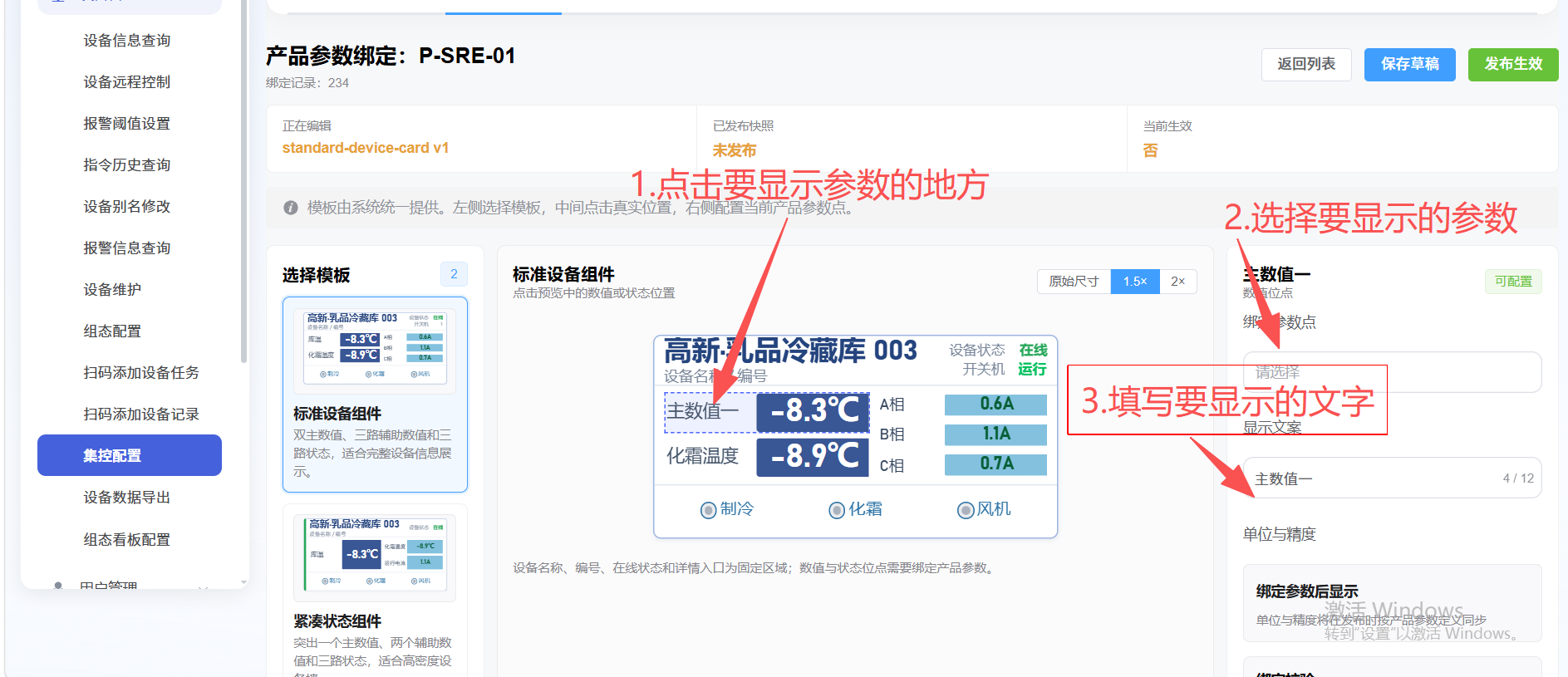
- Standard Device Component: dual main values, three auxiliary values and three statuses, suitable for displaying complete device information.
- Compact Status Component: highlights one main value, two auxiliary values and three statuses, suitable for high-density device walls.
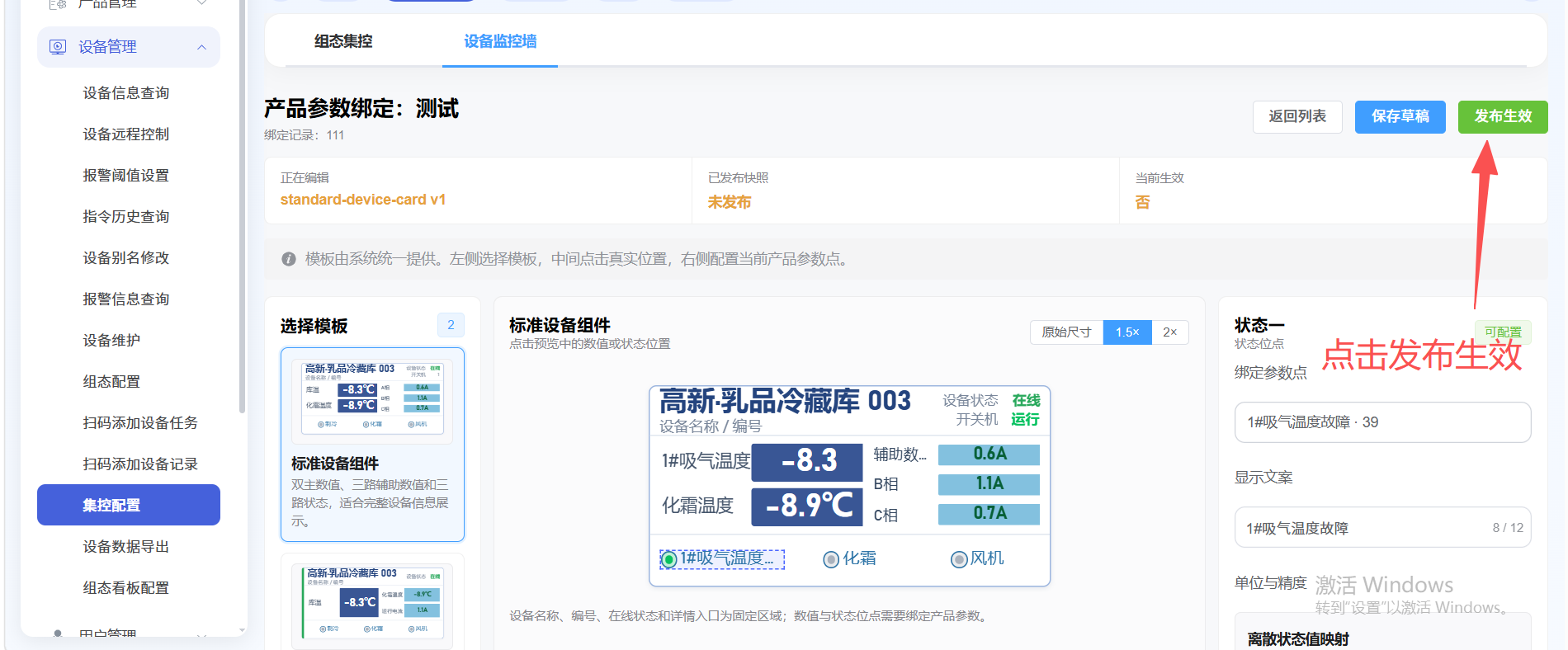
- Click the position of the value or status you want to display in the preview, then configure the bound product parameter, display text, unit and precision, discrete status mapping, etc. on the right.
- Click "Publish" to take effect.
Device name, ID, online status and detail entry are fixed areas; value and status points need to be bound to product parameters.
3. Create a Device Wall
- Click "Centralized Control Configuration" under "Device Management", select "Device Monitoring Wall", then click "New Device Wall".
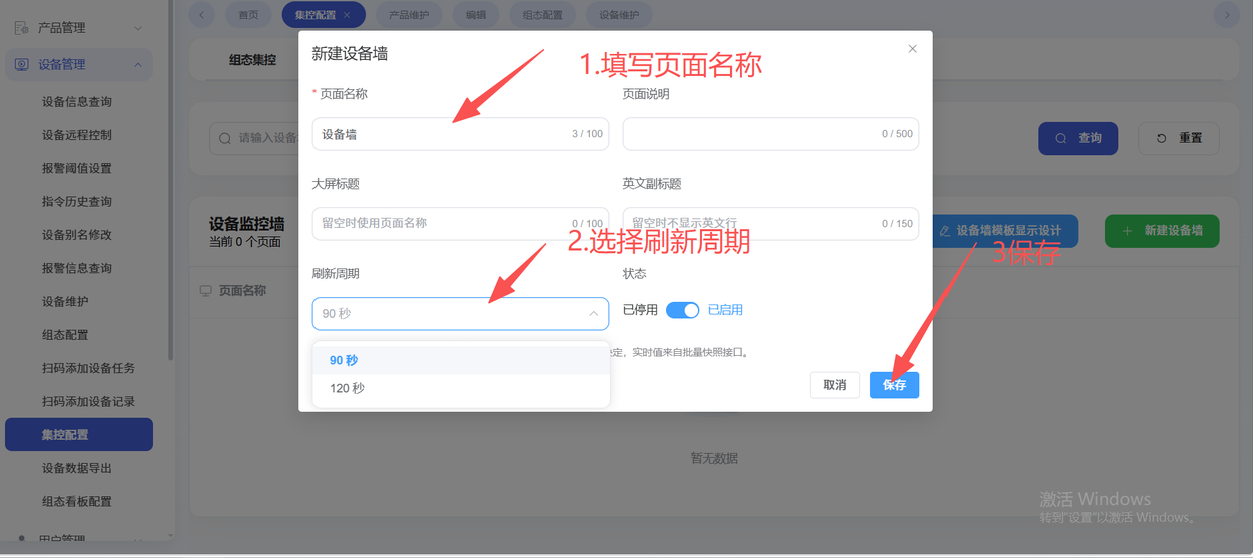
- Fill in the device wall information:
- Page Name (required): enter the page name.
- Page Description: enter a page description (optional).
- Big Screen Title: uses the page name when left empty.
- English Subtitle: the English line is hidden when left empty.
- Refresh Interval: select 90 seconds or 120 seconds.
- Status: select Disabled or Enabled.
- Click "Save".
4. Configure Devices
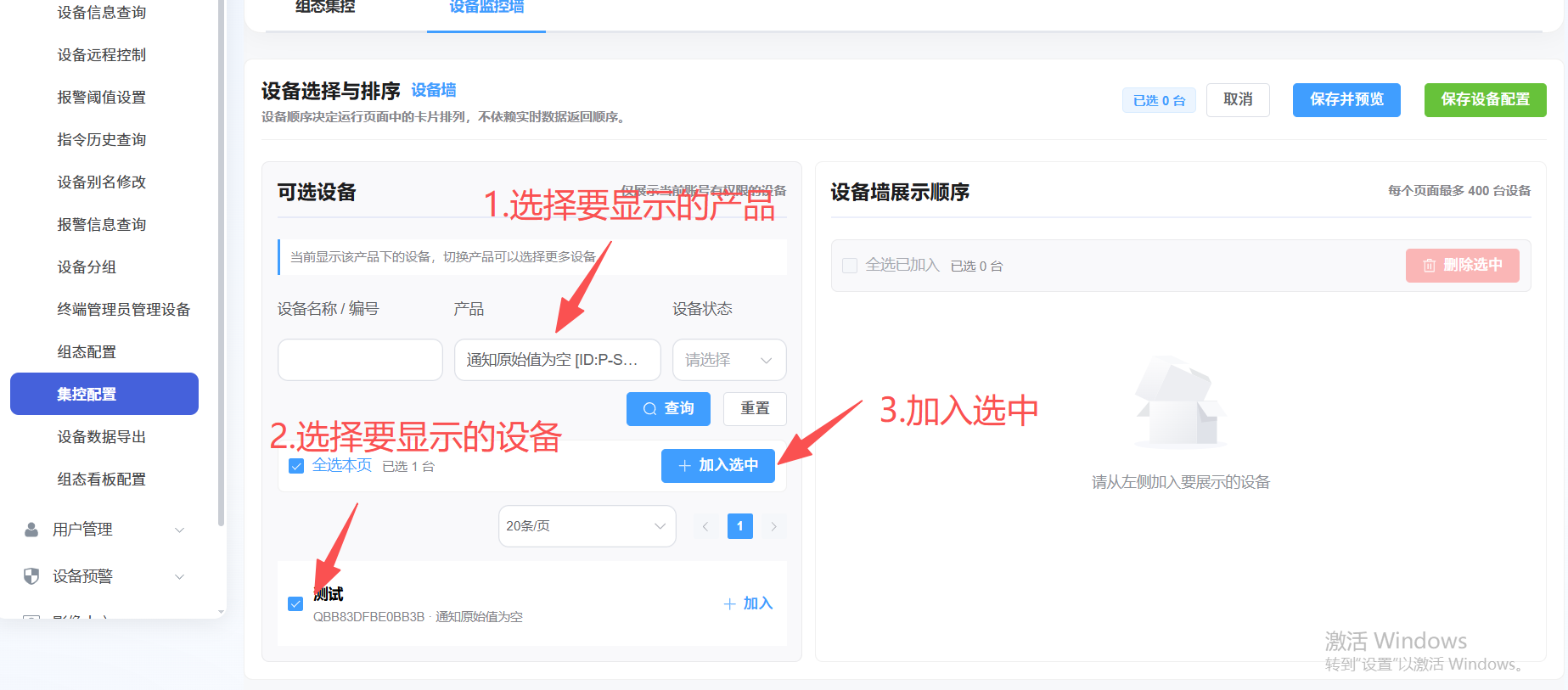
- Open device configuration: click "Configure Devices" in the device wall list.
- Click Product and select the product ID to display.
- Check the devices to display and click "Add to Selected" (search by device name/ID, product and device status is supported; up to 400 devices per page).
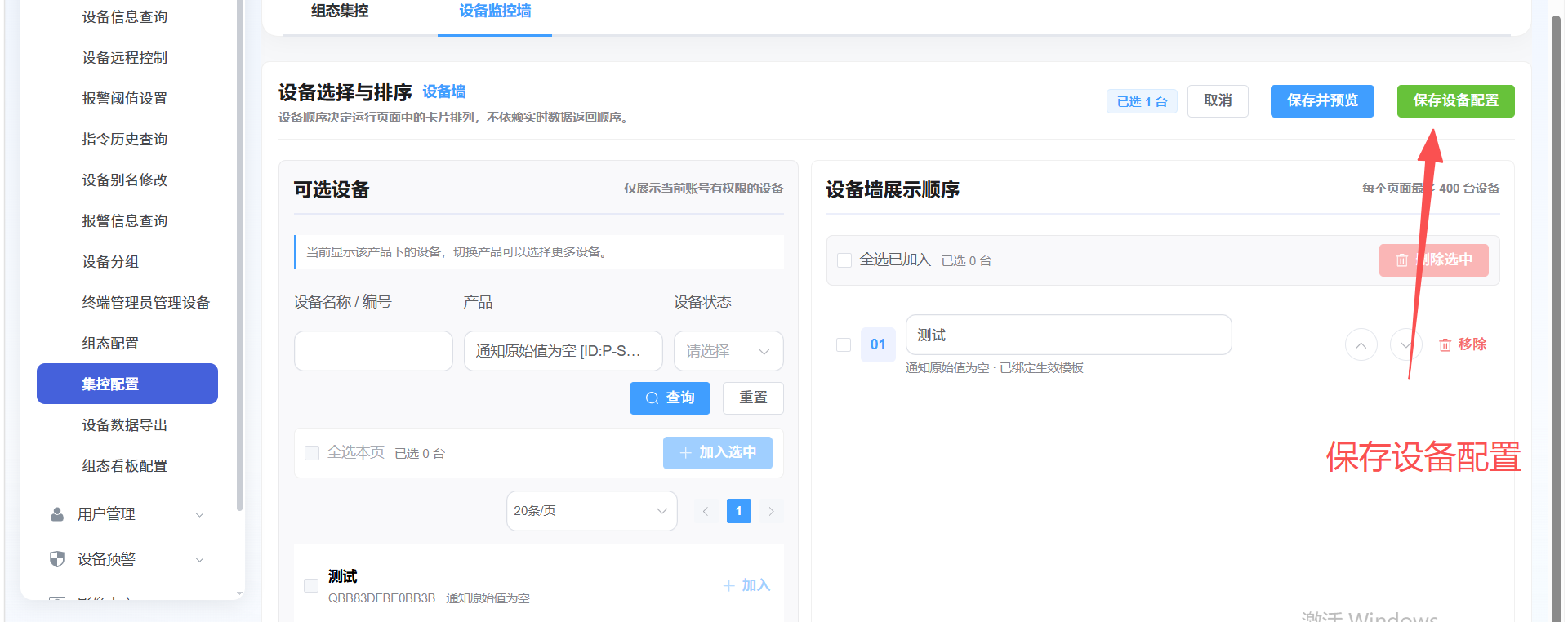
- Adjust the display order in "Device Wall Display Order" (the order determines the card arrangement on the run page and does not depend on the real-time data return order).
- Click "Save Device Configuration".
5. View the Device Wall
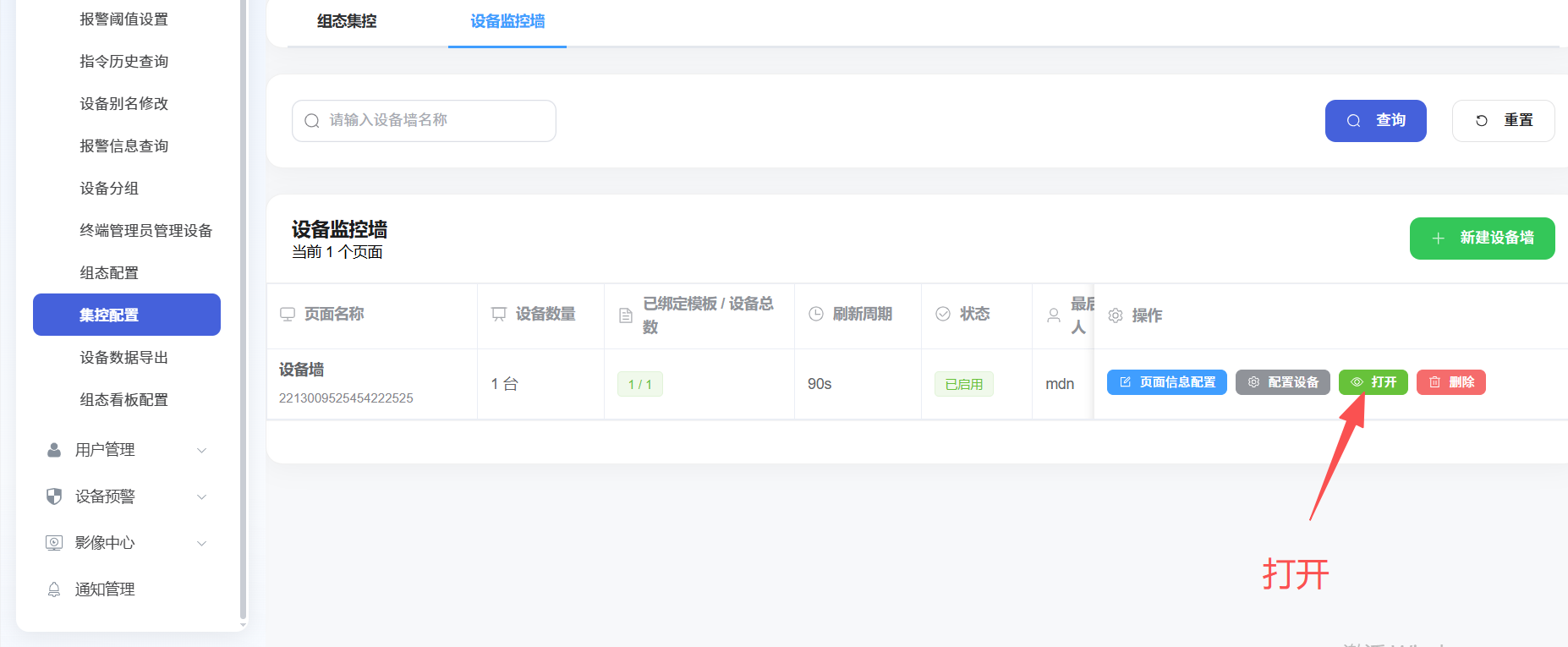
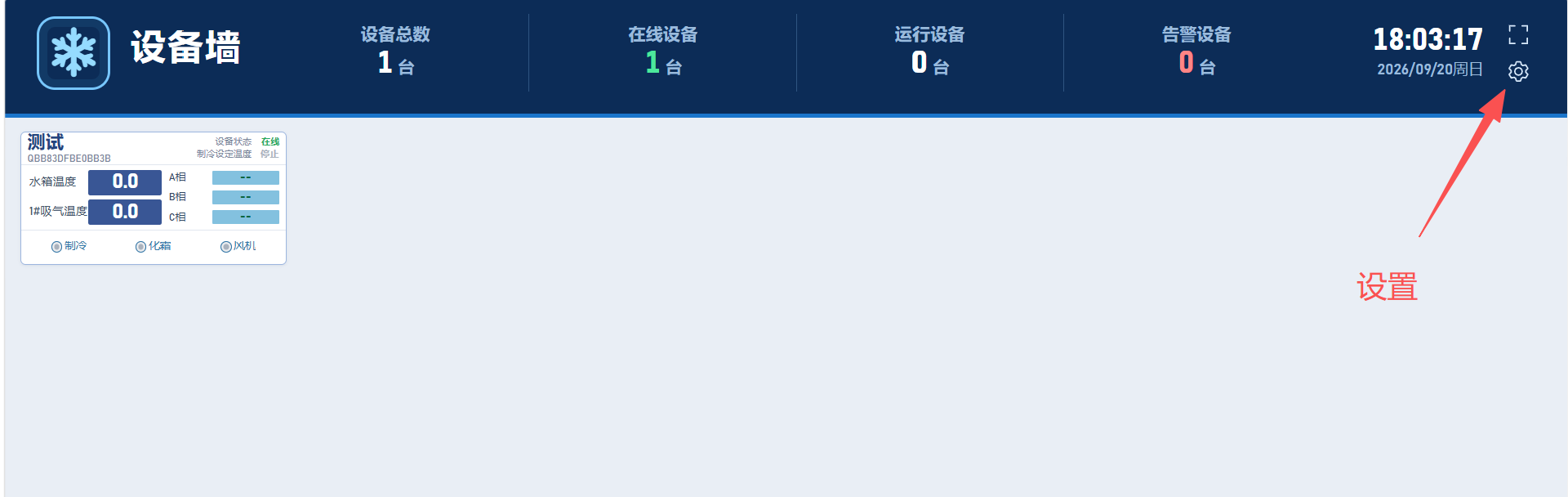
- Click "Open" to enter the device wall run page.
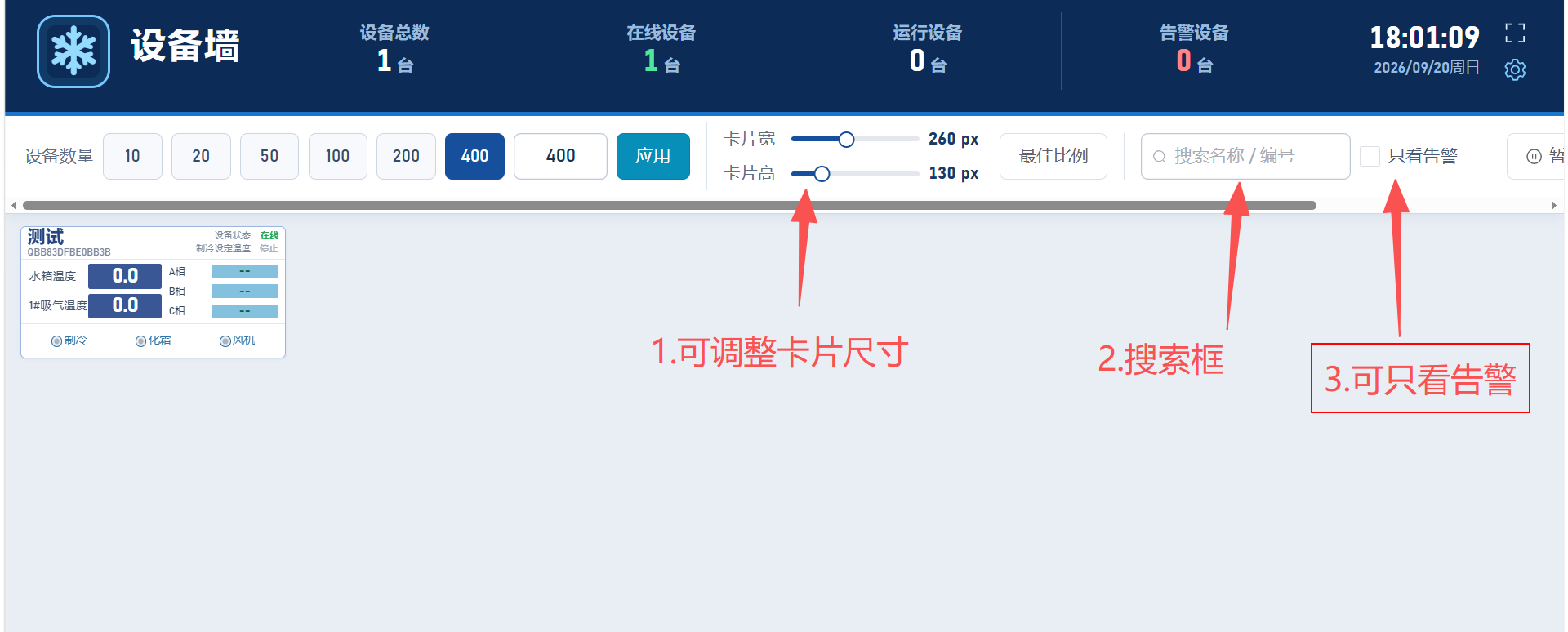
- Drag "Card Width" and "Card Height" to adjust the card display size; you can also set the number of devices per page (10 / 20 / 50 / 100 / 200 / 400).
- Use the search box to search devices by name/ID, or check "Alarms Only" to show only alarming devices.