Controller Firmware Management
Overview
The controller firmware management module allows you to upload, manage, and deploy controller firmware versions, ensuring that devices run the latest and most stable firmware.
Firmware Upload
- Log in to the cloud platform and go to the "Controller Management" > "Firmware Management" page
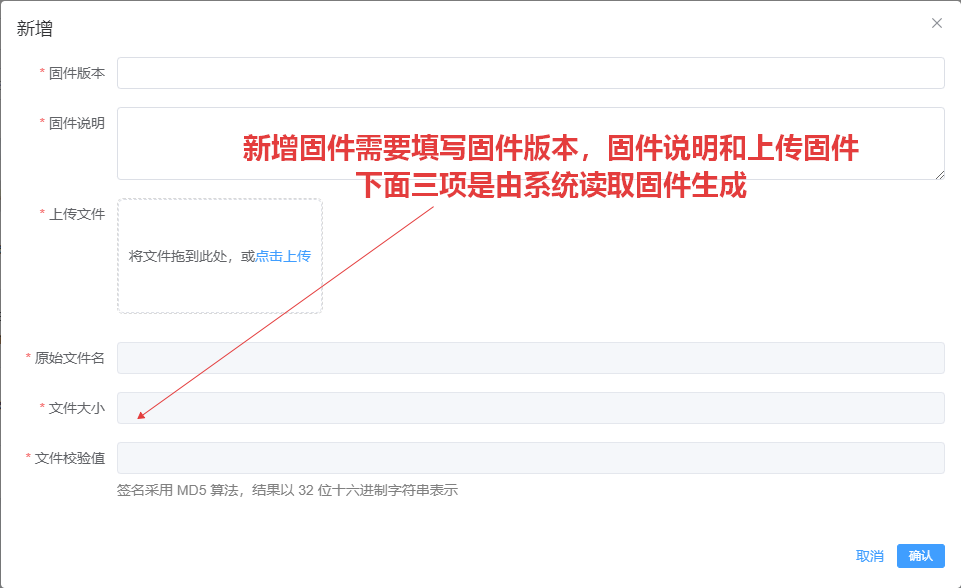
- Click the "Upload Firmware" button
- Fill in firmware information:
- Firmware name
- Firmware version
- Applicable controller model
- Firmware description
- Select the firmware file and upload it
- Click "Save" to complete the upload
Firmware Management
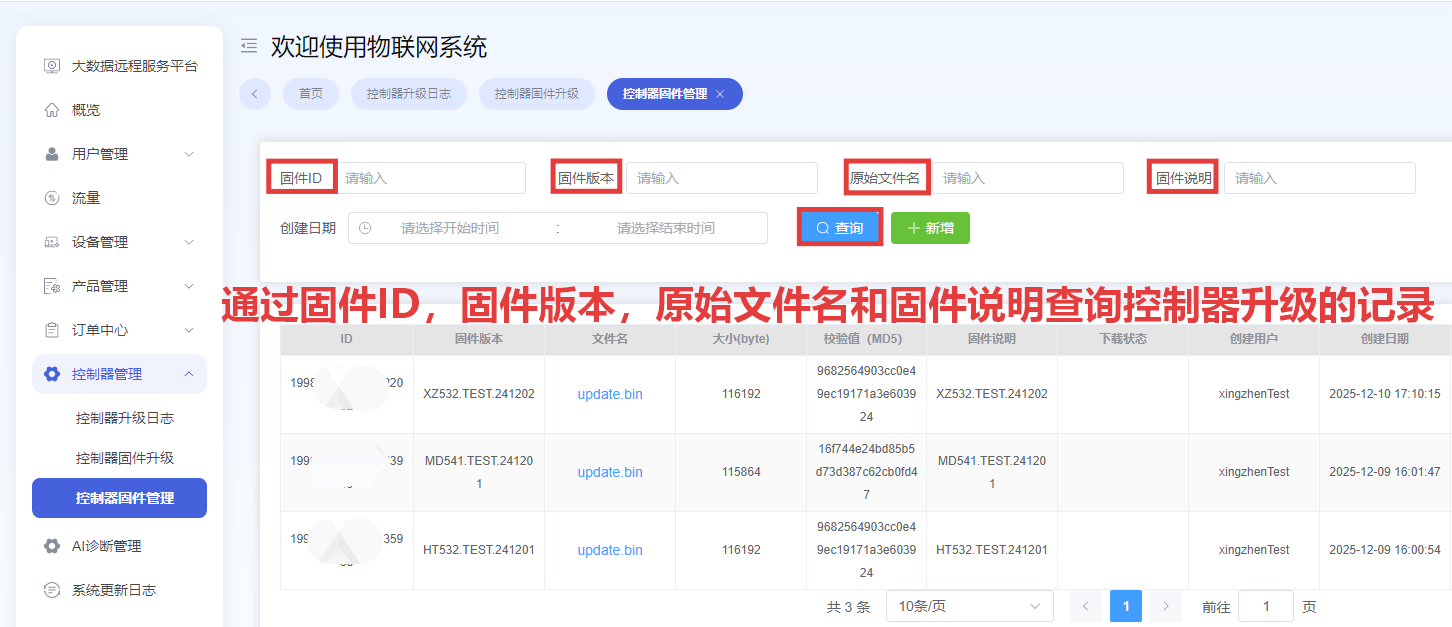
View Firmware List
- On the firmware management page, you can view all uploaded firmware
- Supports filtering by controller model, version number, and other conditions
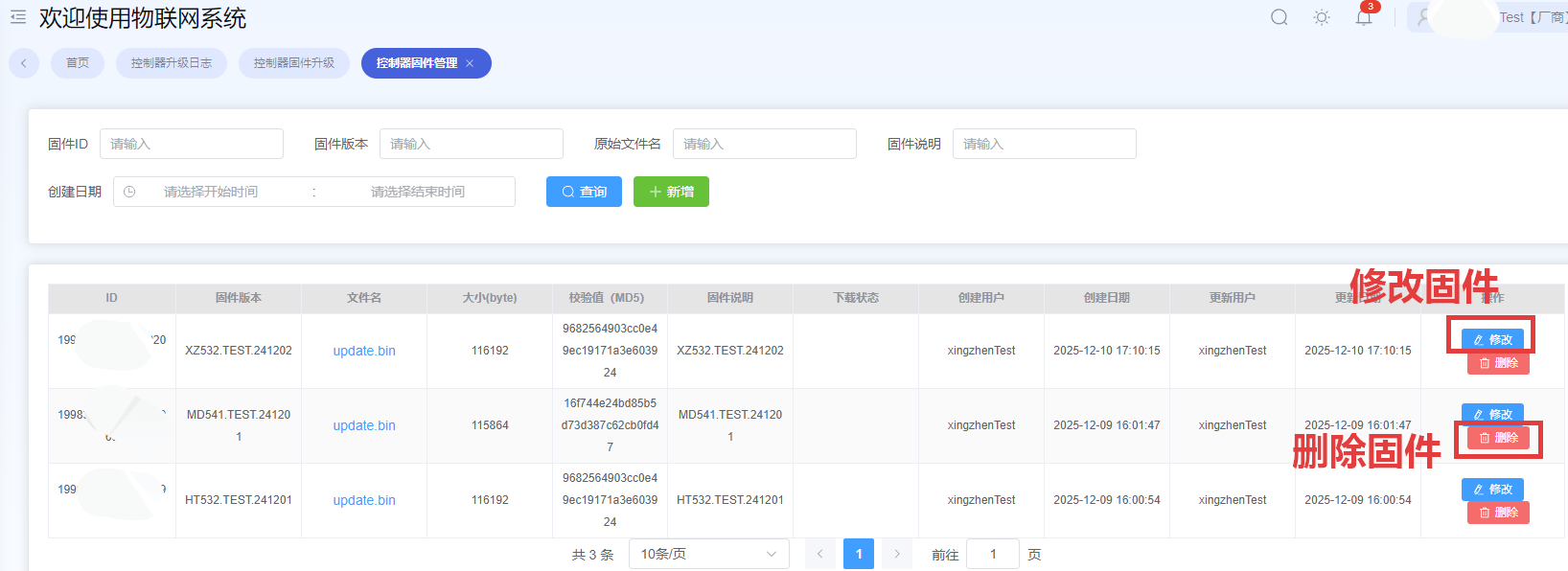
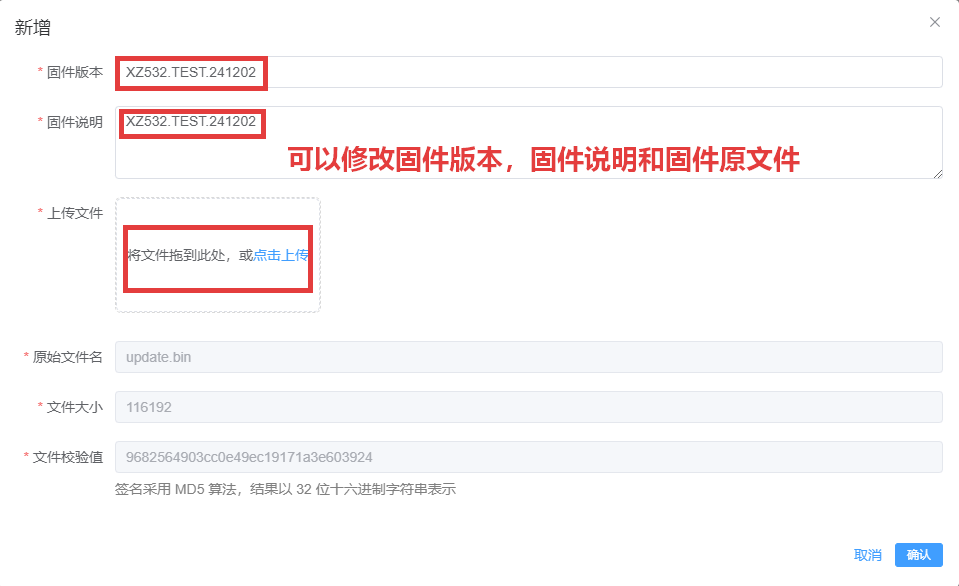
Edit Firmware Information
- Click the "Edit" button in the firmware list
- Click "Save" after modifying firmware information
Delete Firmware
- Click the "Delete" button in the firmware list
- Confirm the deletion operation
Firmware Deployment
Batch Deployment
- On the firmware management page, select multiple firmware to be deployed
- Click the "Batch Deploy" button
- Select target devices or device groups
- Confirm the deployment plan
- Click "Start Deployment"
Single Deployment
- In the firmware list, click the "Deploy" button for the target firmware
- Select target devices
- Confirm deployment
Deployment Status Monitoring
- On the "Deployment Records" page, you can view the status of all firmware deployments
- Supports viewing deployment progress, success/failure status
- Provides deployment log viewing functionality
Notes
- Firmware file size limit is 100MB
- Uploaded firmware must match the controller model
- Ensure the device is online and has sufficient power before deploying firmware
- Do not disconnect the device power during firmware deployment
- The device will automatically restart after deployment is complete, please pay attention to business impact