
AI Diagnosis Instructions
1. Entry from the Main App Screen
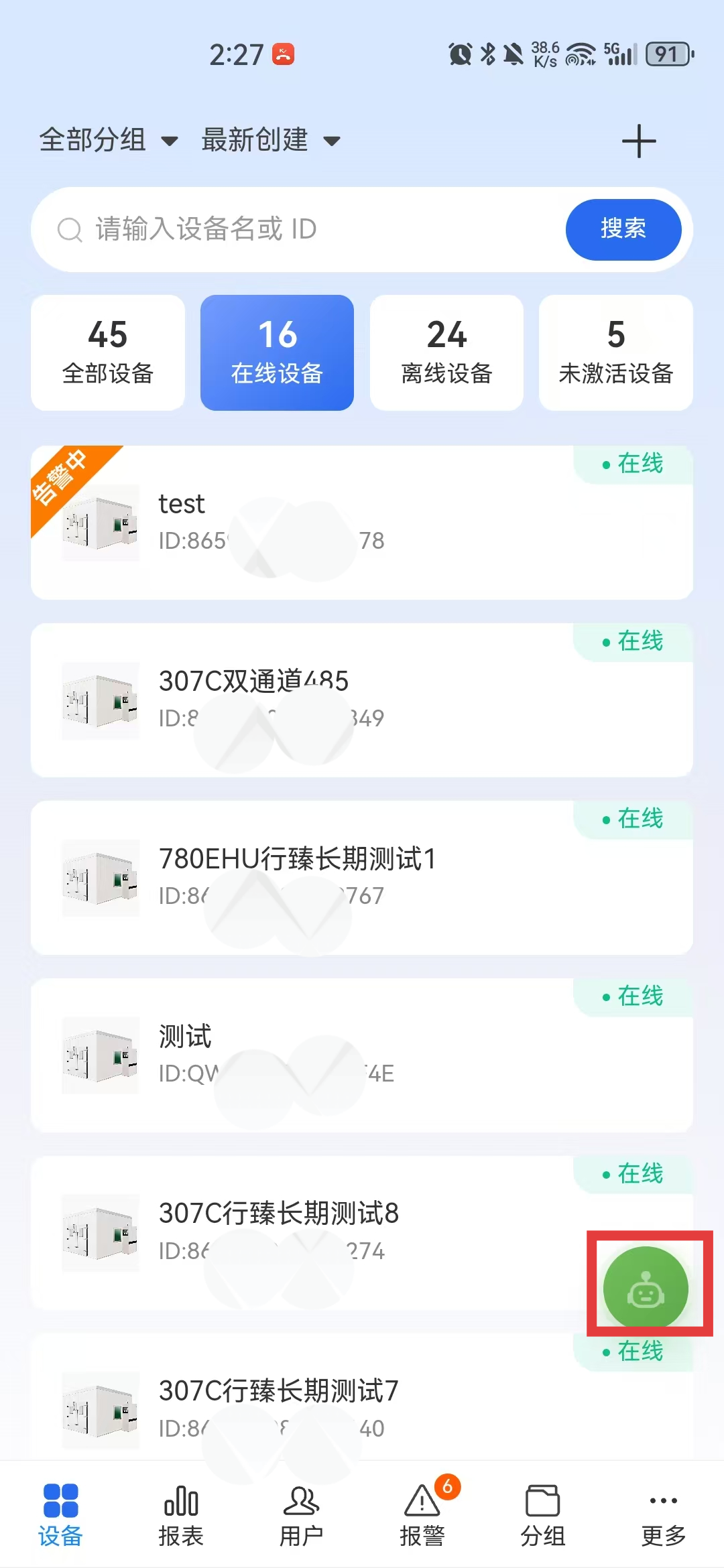
Log in to the Device Smart app and tap the green button in the lower-right corner of the main screen to enter AI Diagnosis.
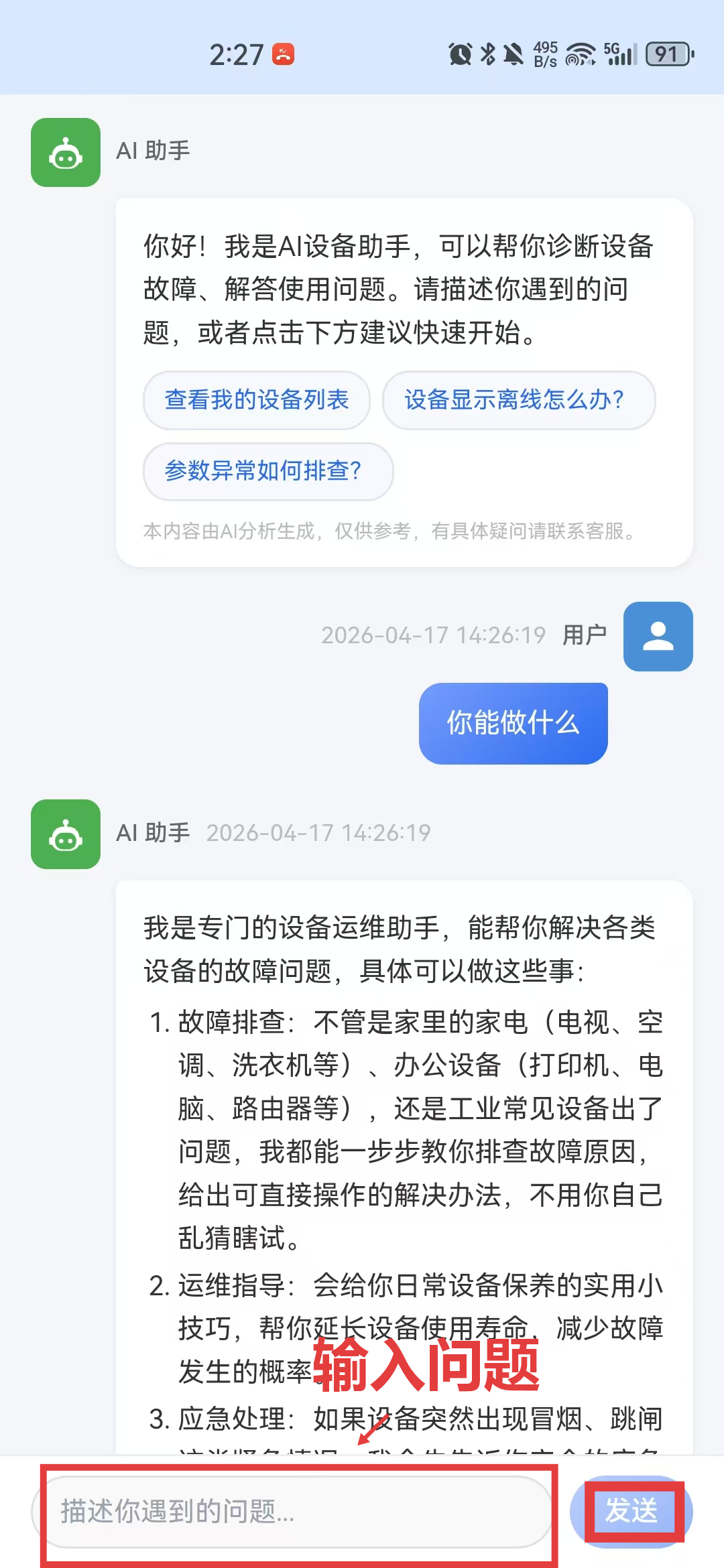
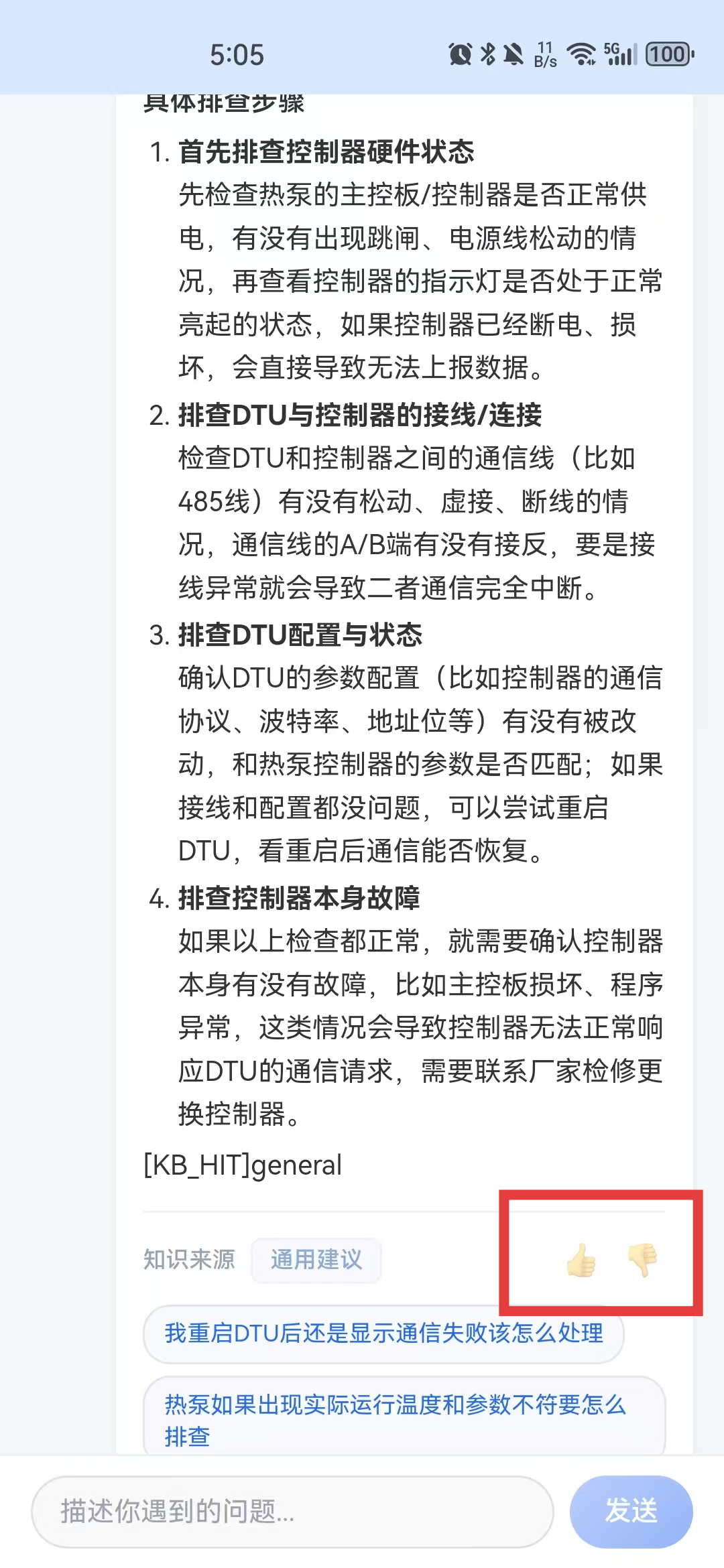
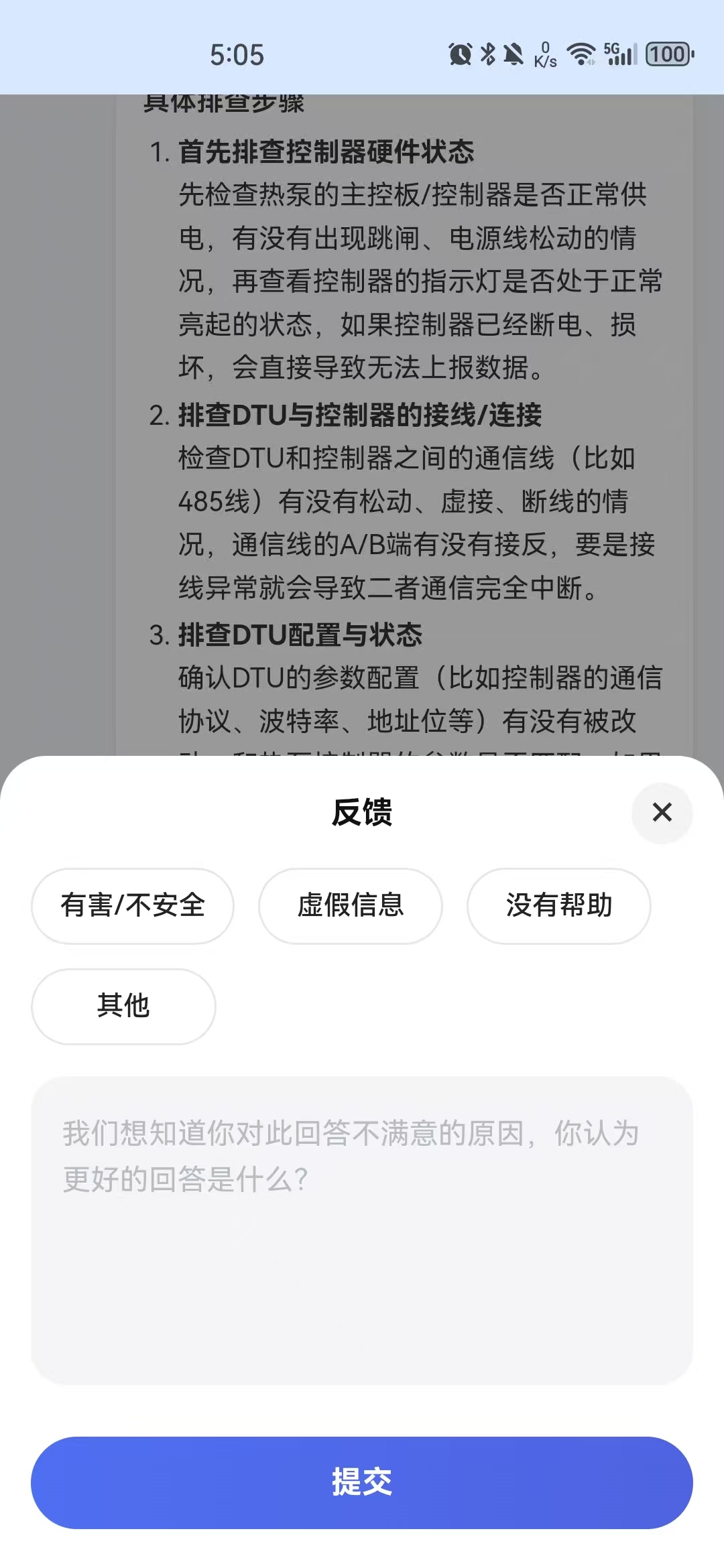
If the diagnosis result is helpful, you can give it a thumbs-up so the AI remembers it as a correct answer. If it is not helpful, give a thumbs-down and provide the correct information to improve future answers.
2. Entry from a Device
Log in to the Device Smart app, open the device, and tap Expand More when online or Offline Diagnosis when offline.
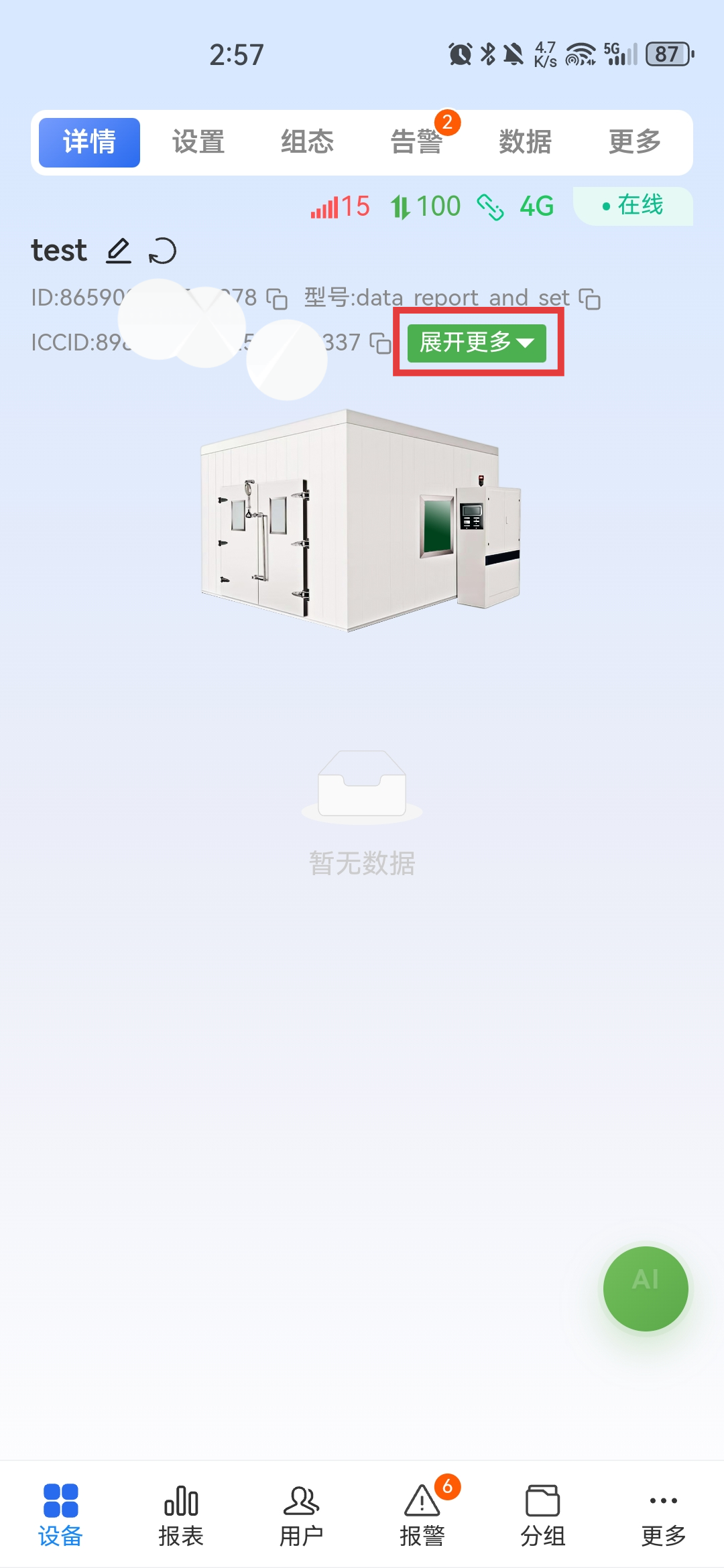
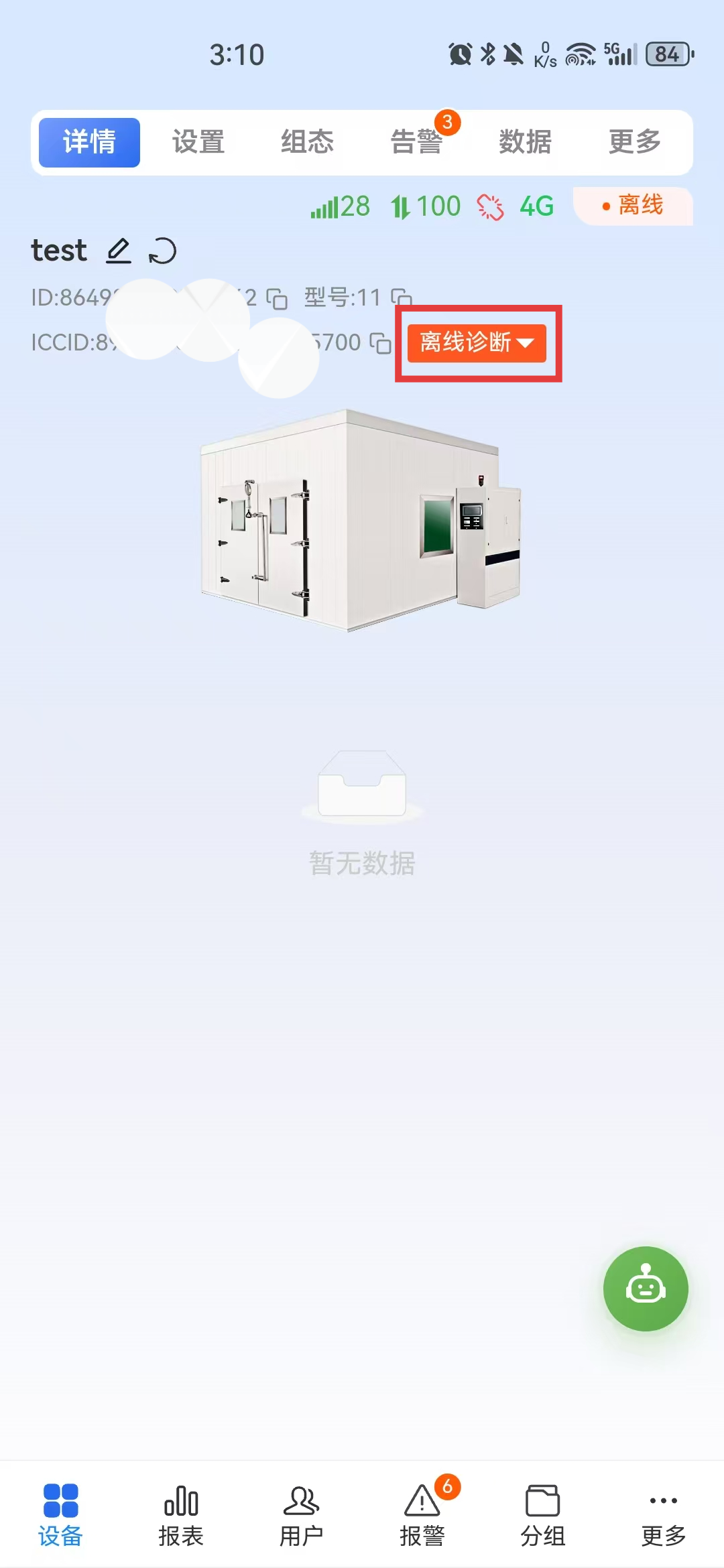
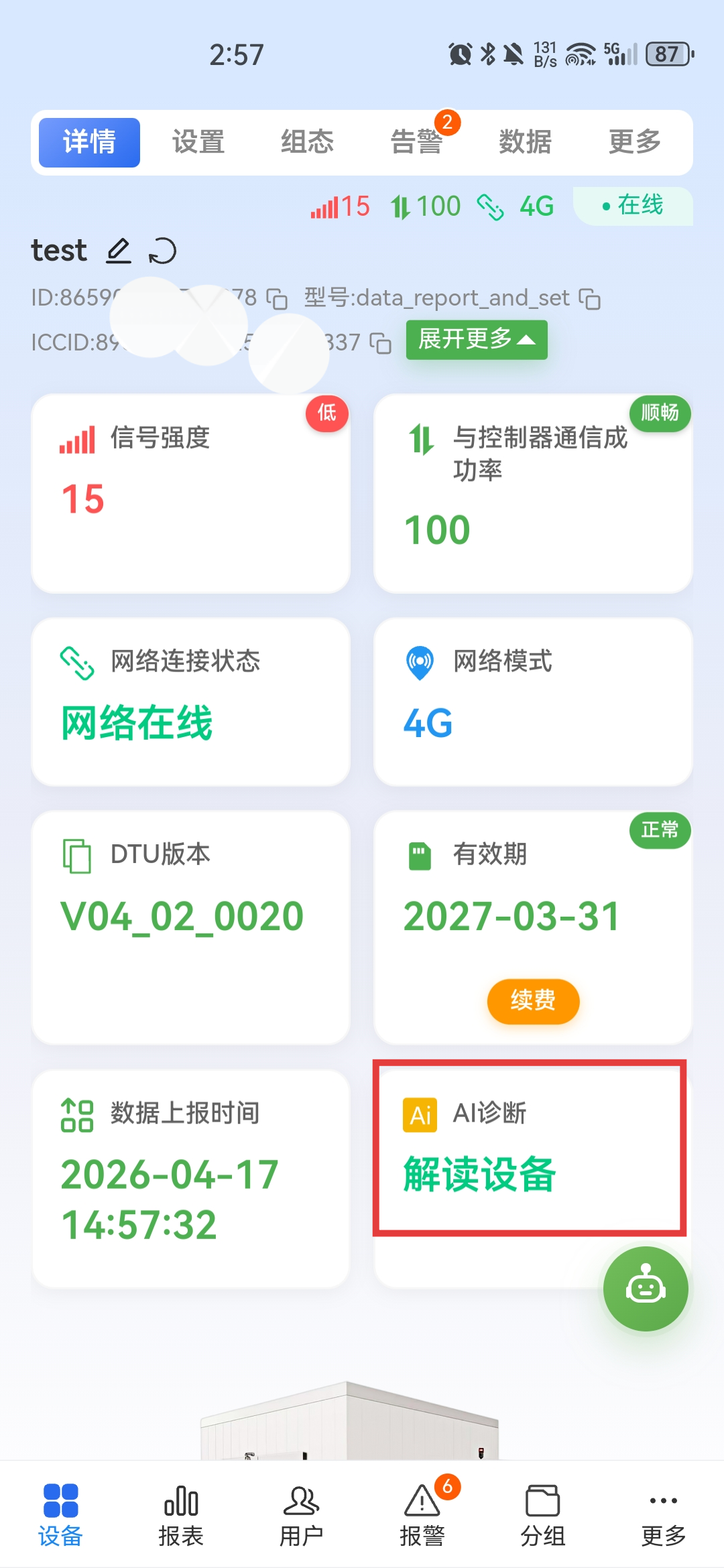
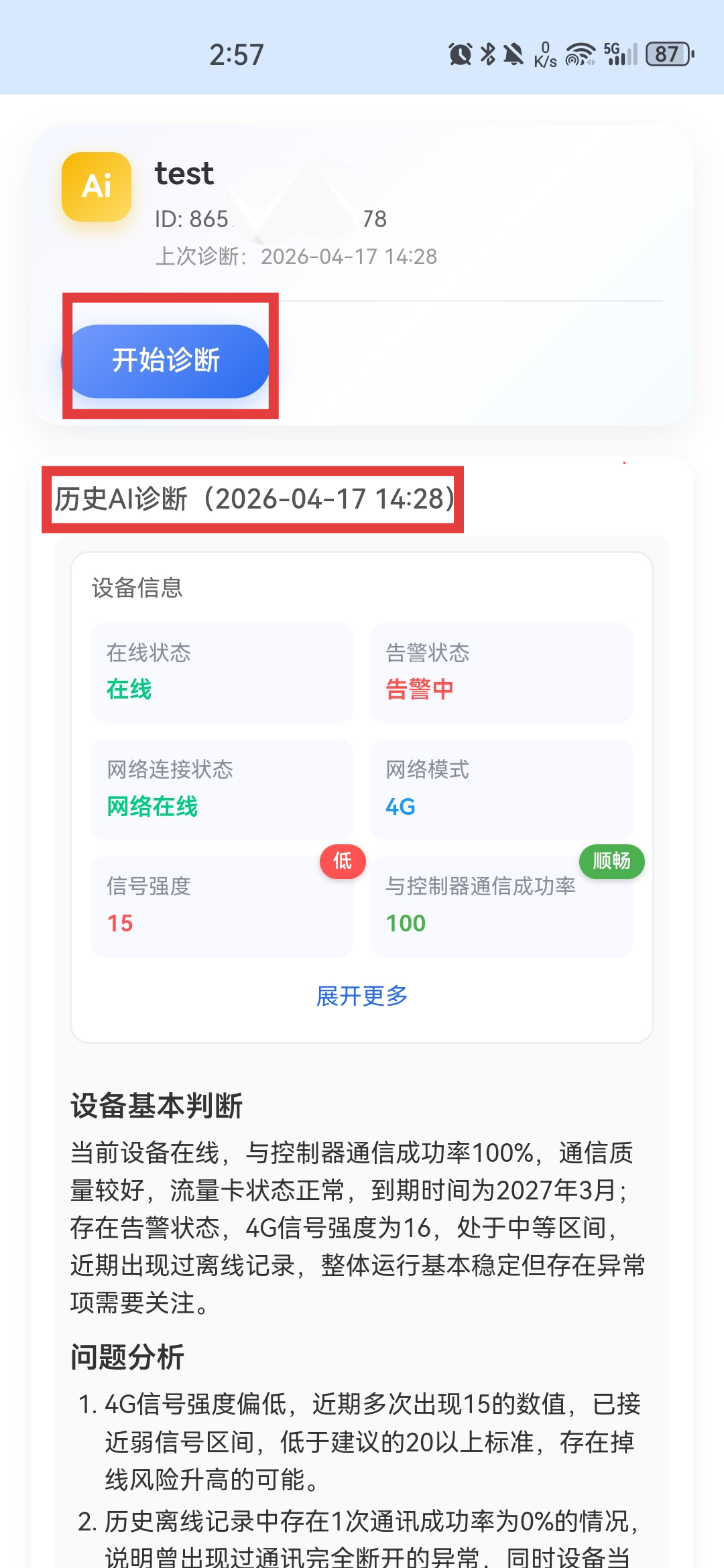
Tap Interpret Device and then Start Diagnosis. AI automatically analyzes the device. If the device has been diagnosed before, historical diagnosis time and results are displayed.
3. Alarm AI Diagnosis
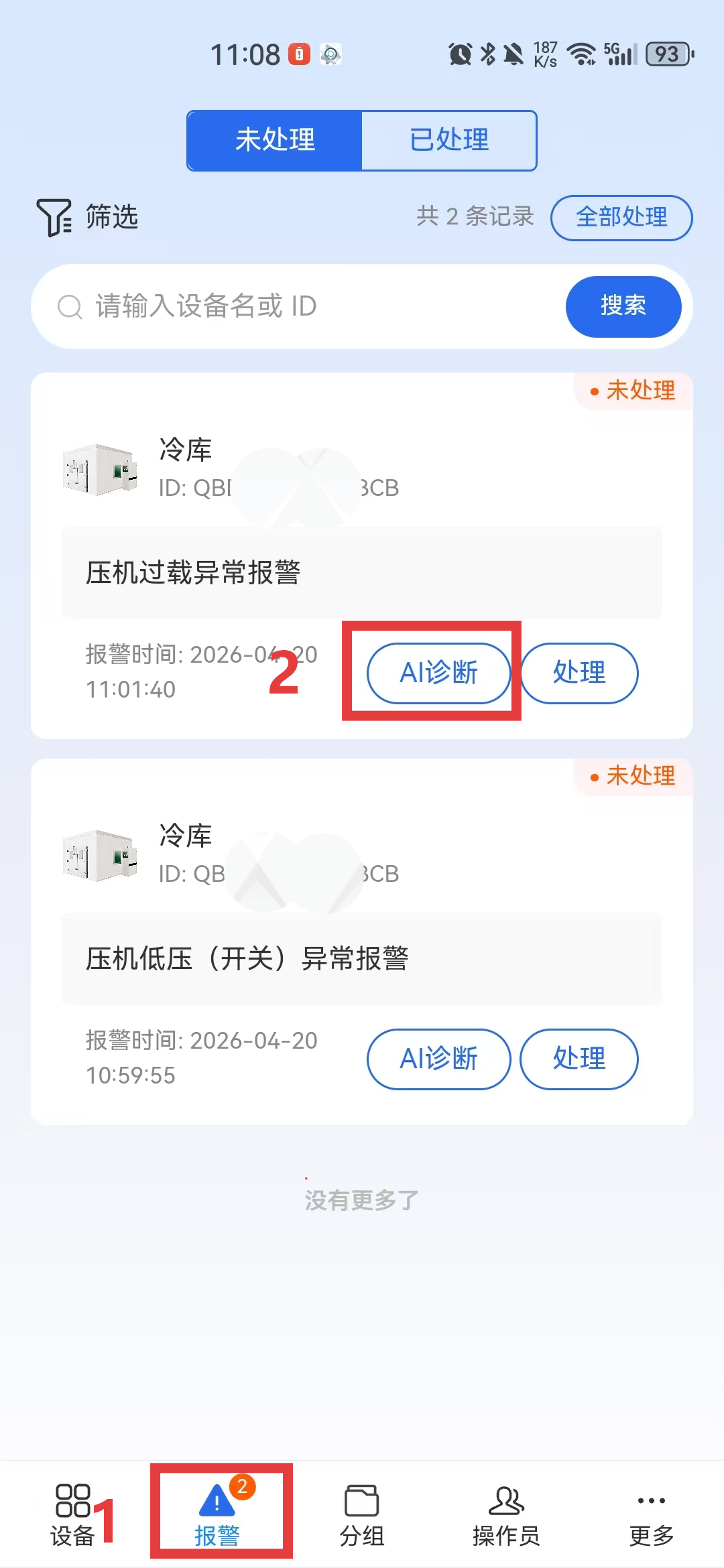
When a device triggers an alarm, open the alarm page in the app and tap AI Diagnosis under the alarm record. AI analyzes the alarm together with device operation data and provides suggestions.
4. Add Knowledge in the Backend
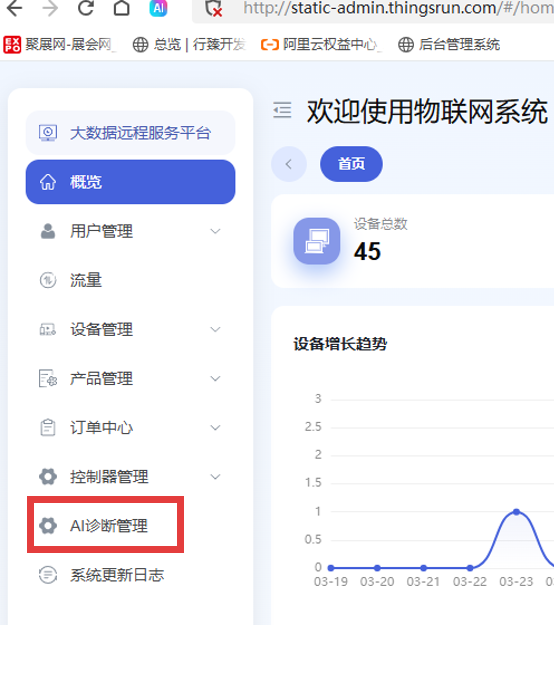
Log in to the backend at http://static-admin.thingsrun.com and open AI Diagnosis Management from the left menu.
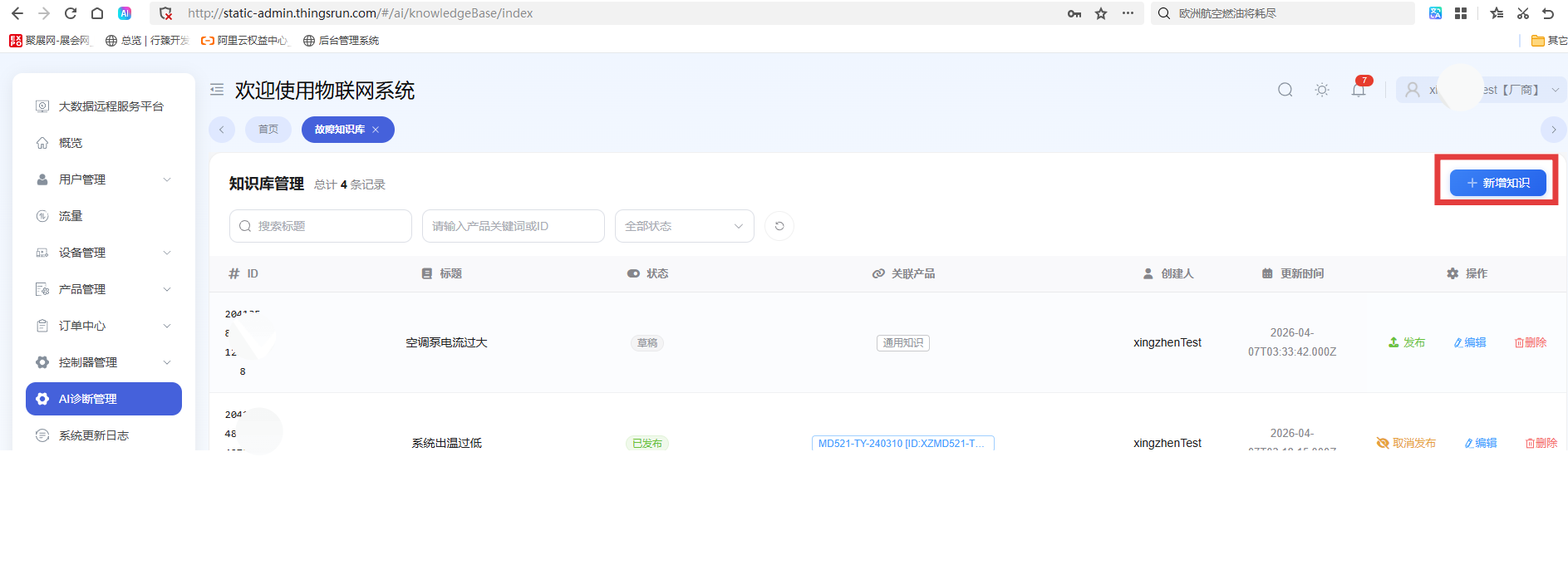
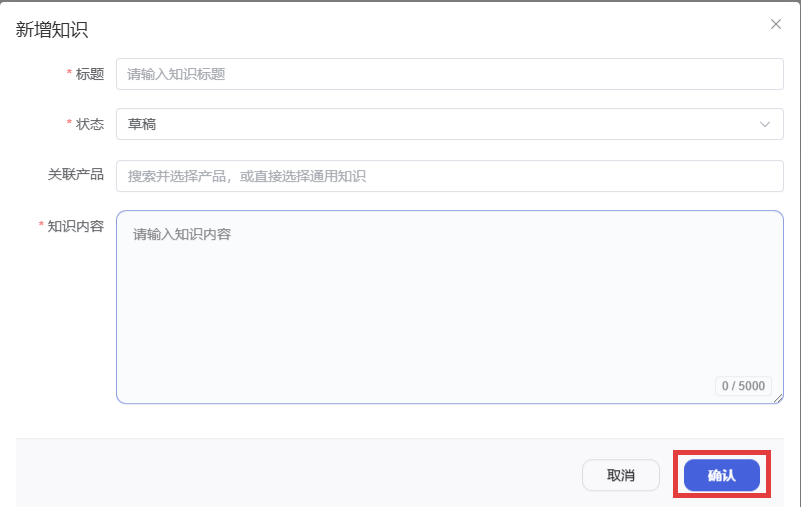
Fill in the title, status, and knowledge content in the dialog, then click Save. Draft content is not available to AI. Published content can be queried by AI, and associated products make diagnosis more targeted.
5. Notes on AI Diagnosis Results
As the backend data and fault knowledge base continue to improve, AI diagnosis will keep evolving and become more capable.
AI diagnosis depends on backend system data, the vendor fault knowledge base, and large-model search analysis. Please use the result as a careful reference rather than the only basis for decision-making.