Terminal Administrator User Manual
1. Official Account Operation
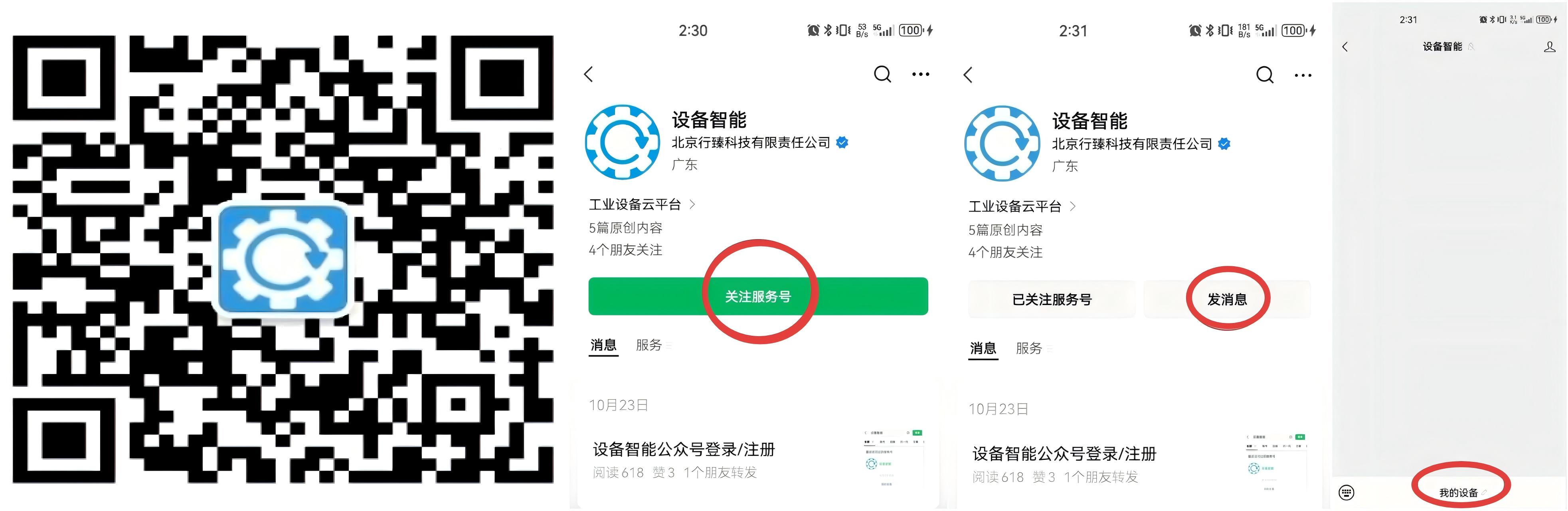
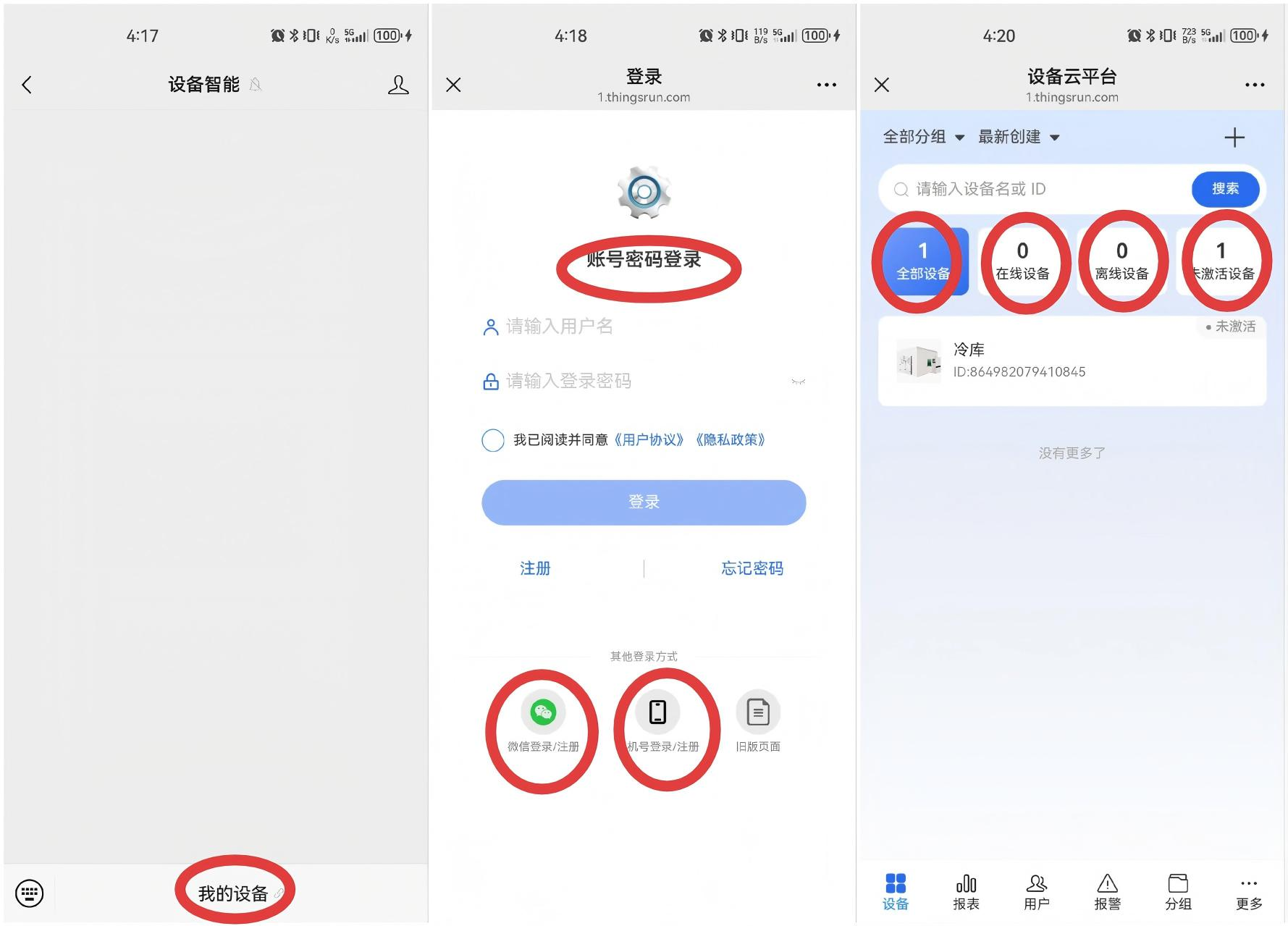
The terminal administrator's operations on the product include the following steps: Follow the official account → Register administrator account → Scan code to bind → Log in to use.
1.1 Follow Official Account: Device Smart
Follow the official account: Device Smart
1.2 Log in/Register Administrator Account
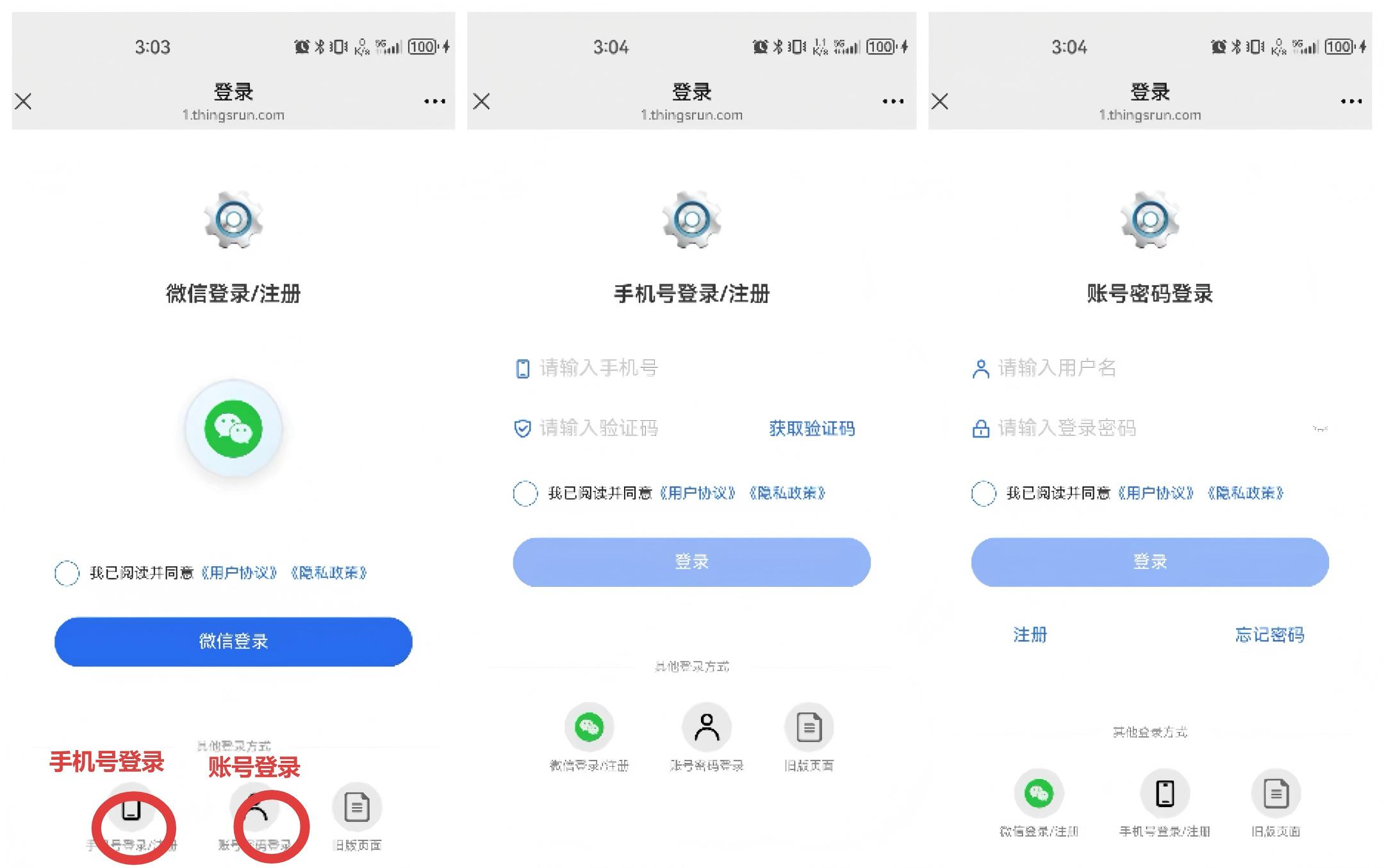
You can choose WeChat login, mobile phone number login, or account login
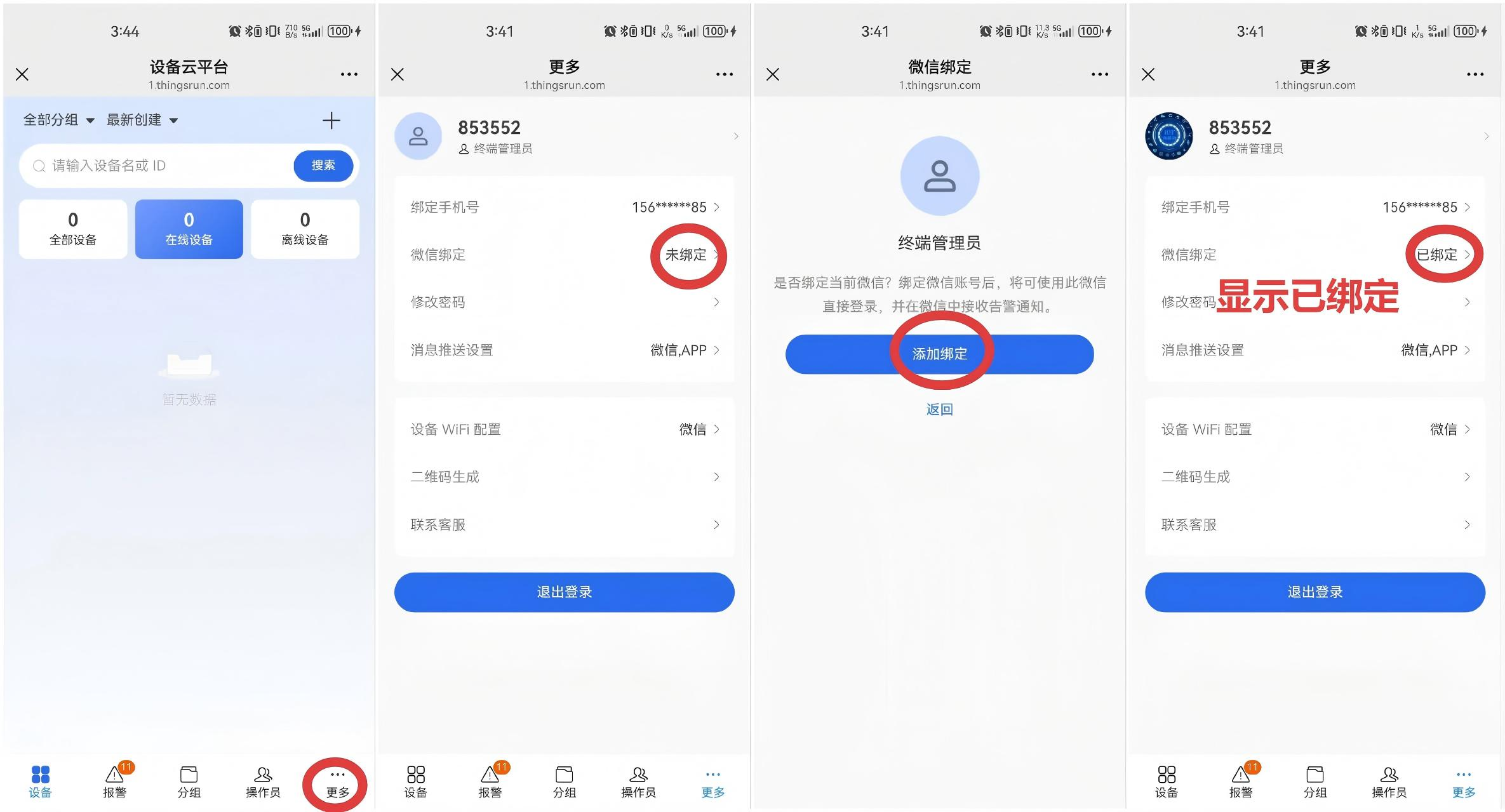
1.3 Bind WeChat
WeChat binding is associated with device alarm information. If WeChat is not bound, WeChat will not be able to receive alarm information.
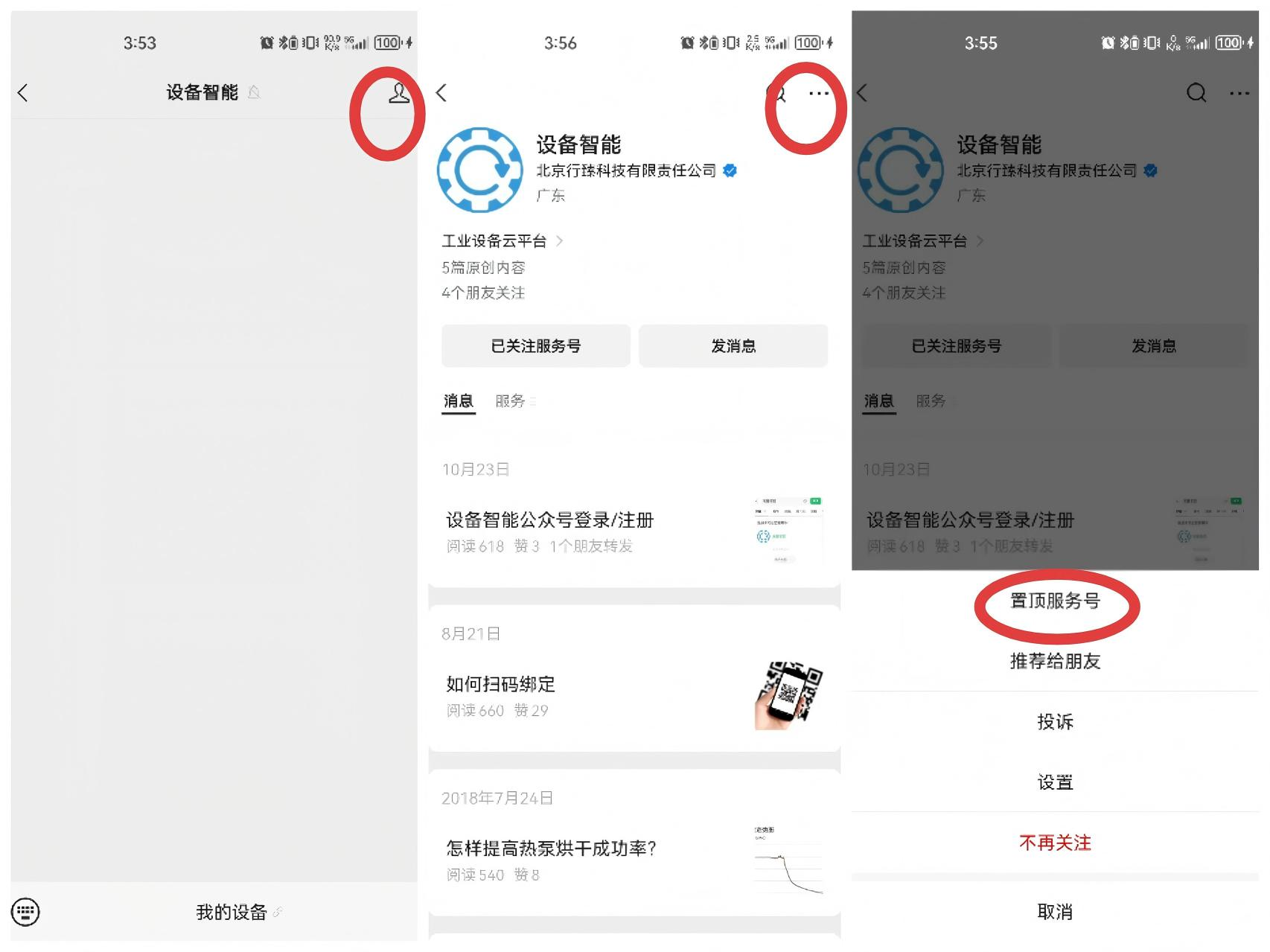
1.4 Pin Official Account
Can help you find your device faster.
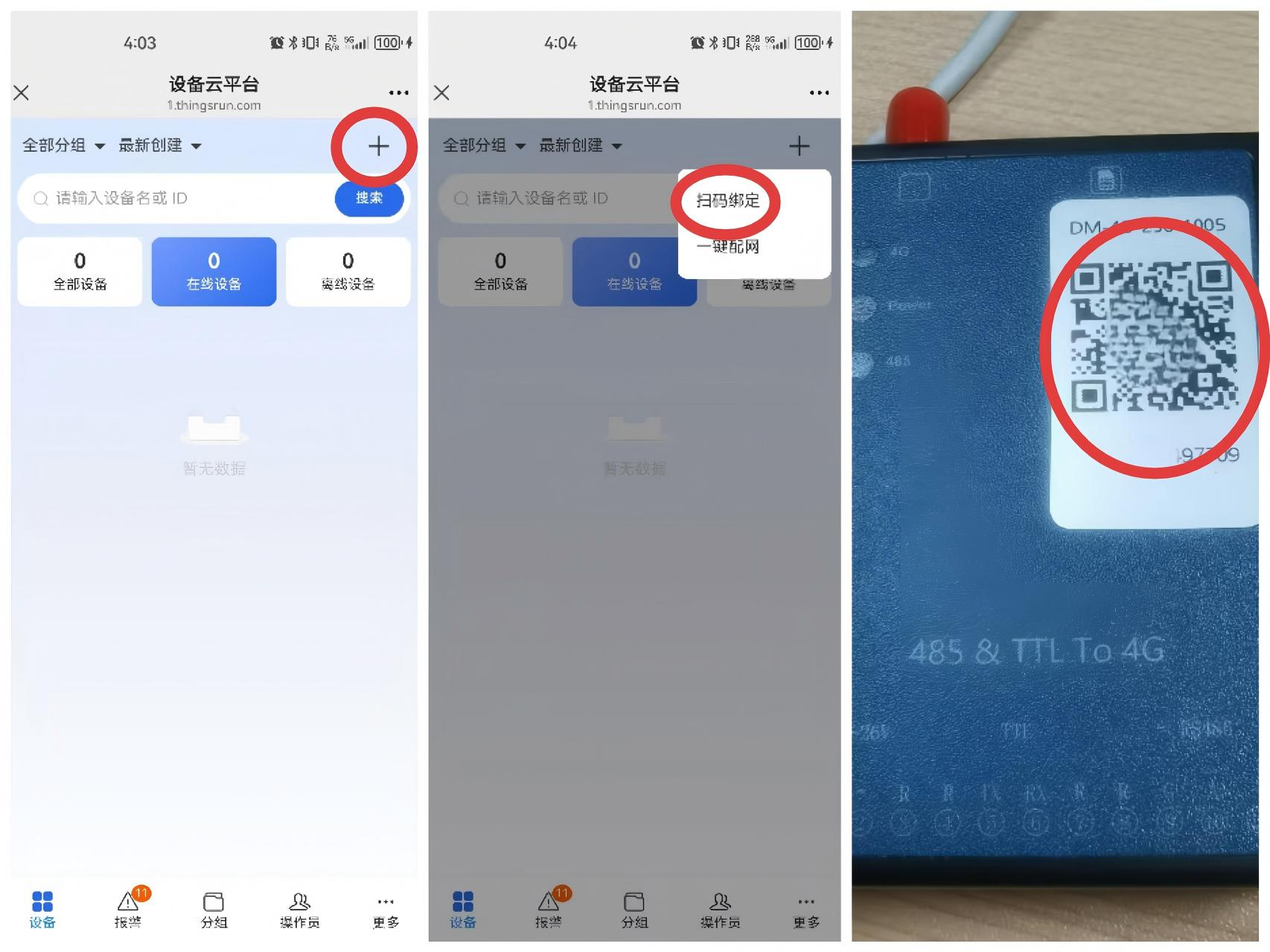
1.5 Add Device - Scan and Bind
After users get the DTU, the device has not been in the customer account, and the device can be added by logging in to the WeChat official account and scanning the QR code on the front of the DTU. The first user who successfully scans and binds is the administrator user of the DTU.
1.6 Log in to Use
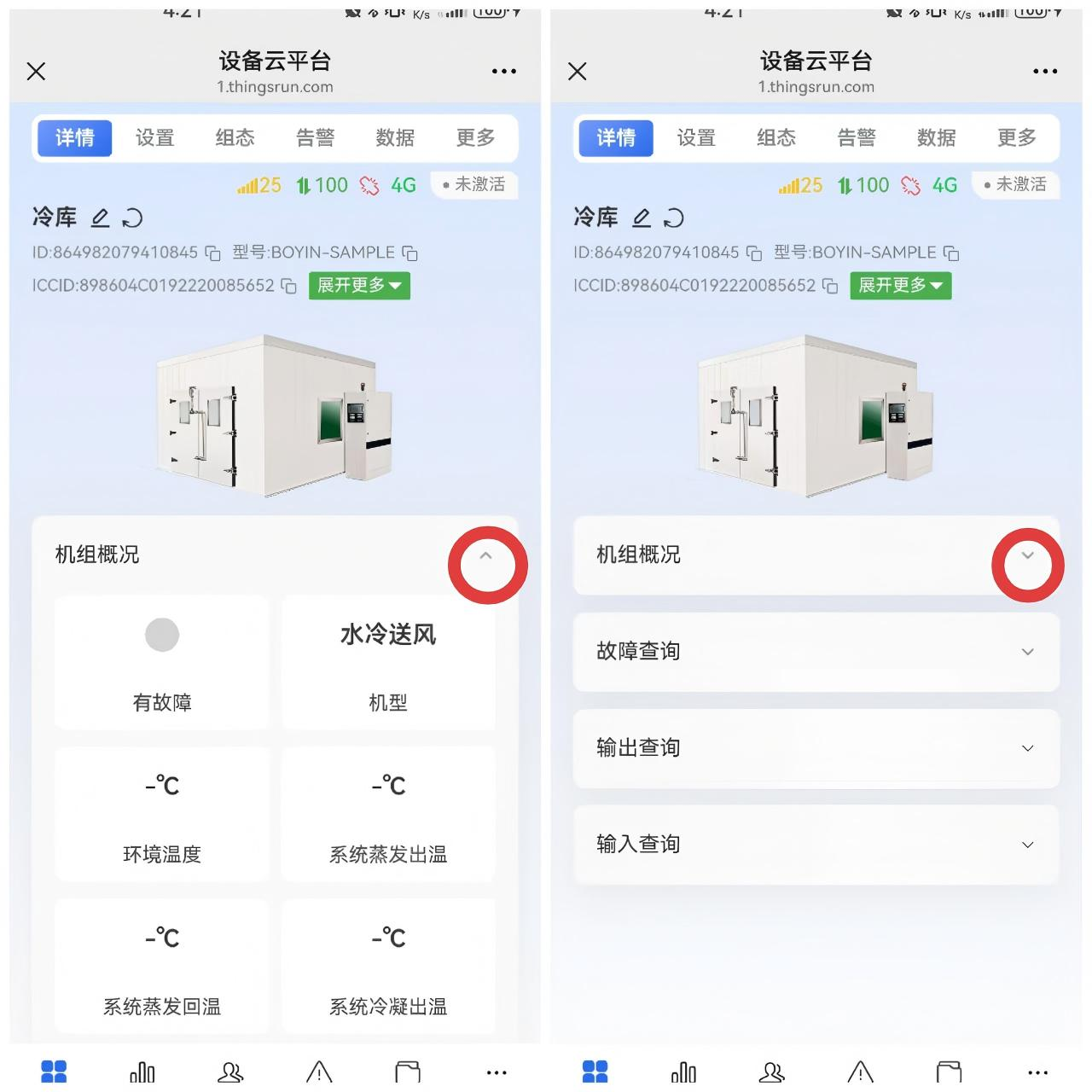
1.7 Device Details
Device details mainly display the working status of the device, usually read-only, usually cannot be set. You can pull down and collapse the parameter list.
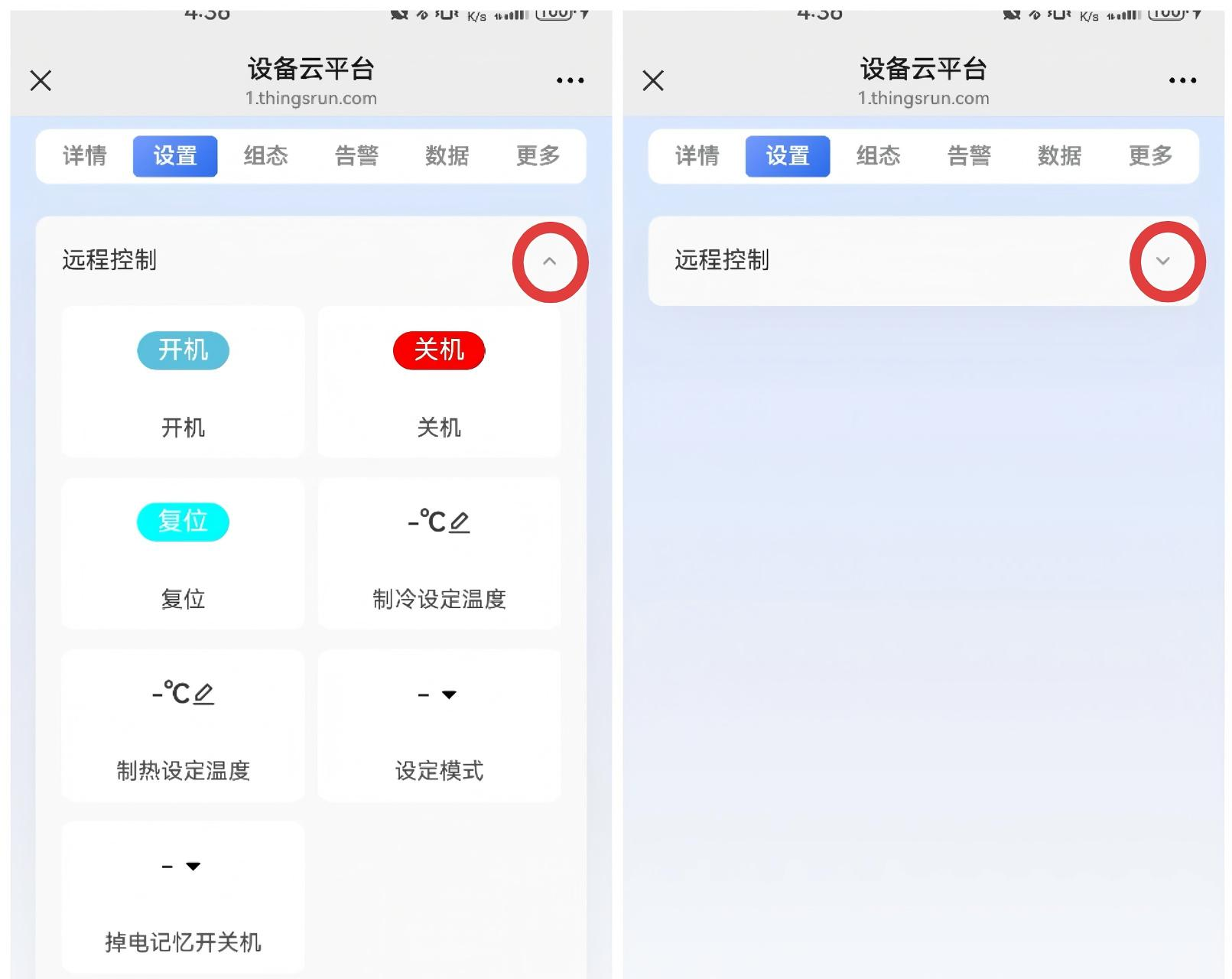
1.8 Settings
The settings page is mainly used to set parameters, which can be pulled down and collapsed.
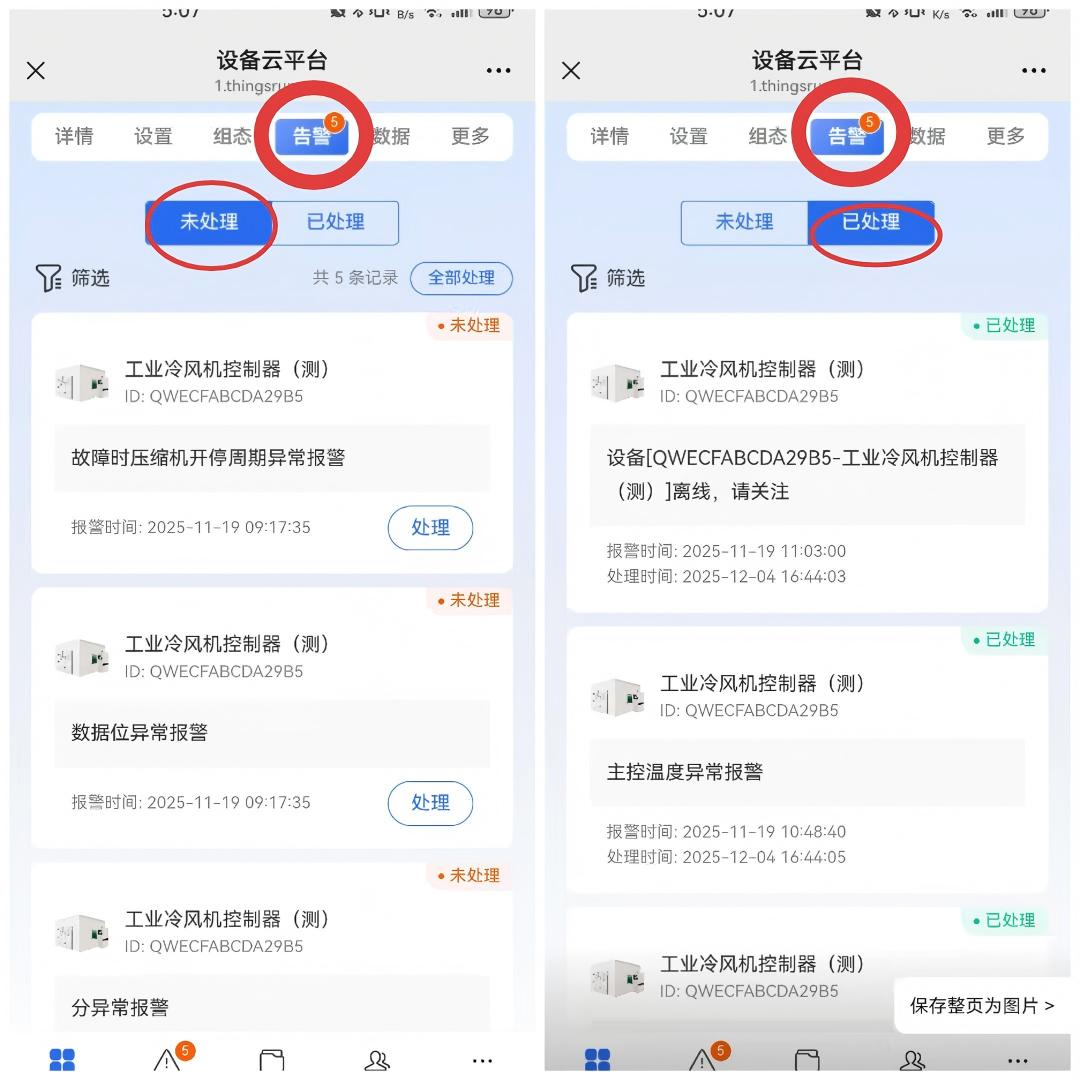
1.9 Alerts
Alerts are divided into unprocessed alerts and processed alerts. Click "Process" in "Unprocessed Alerts", then the record becomes "Processed"
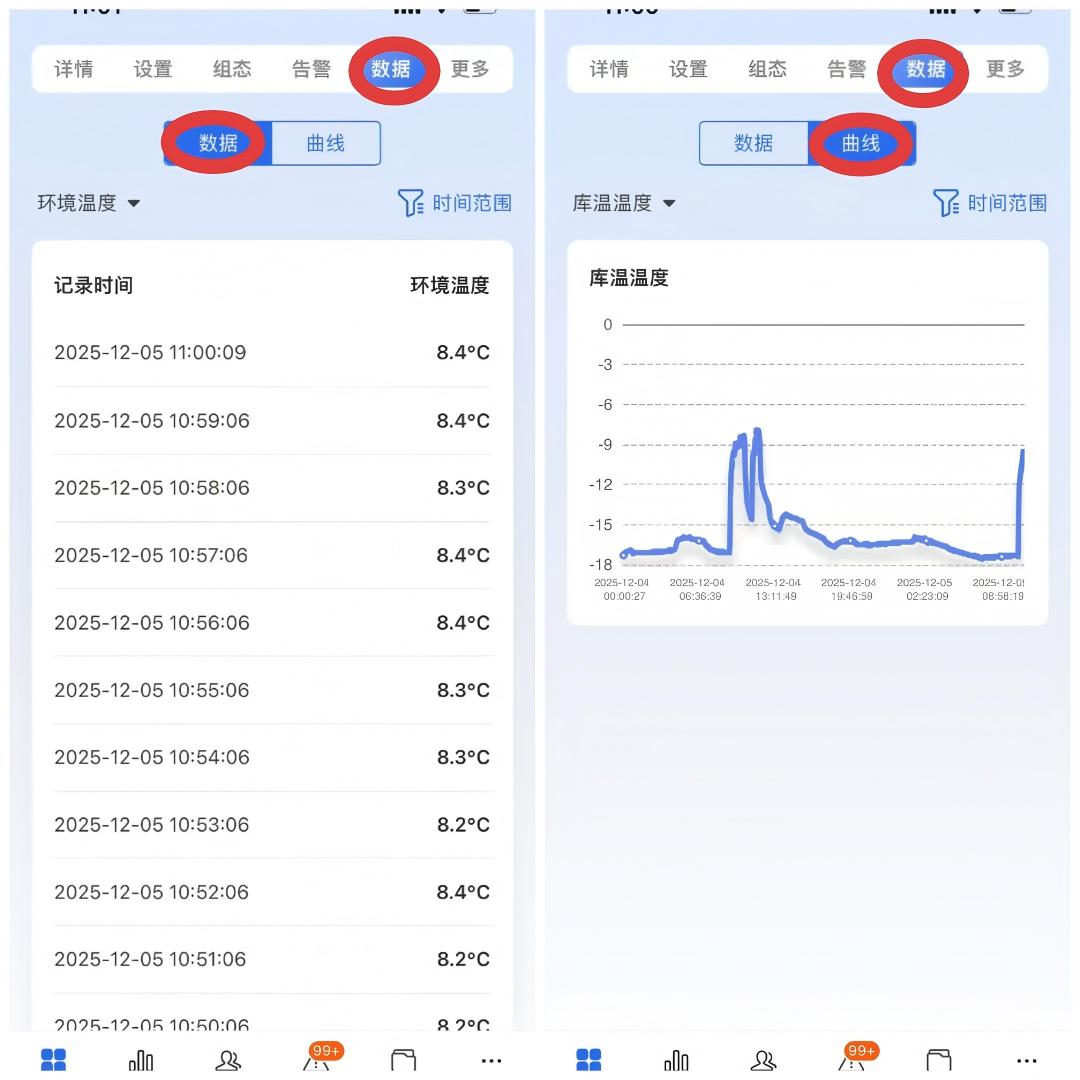
1.10 Data and Curves
Can display historical data and curves of some parameters
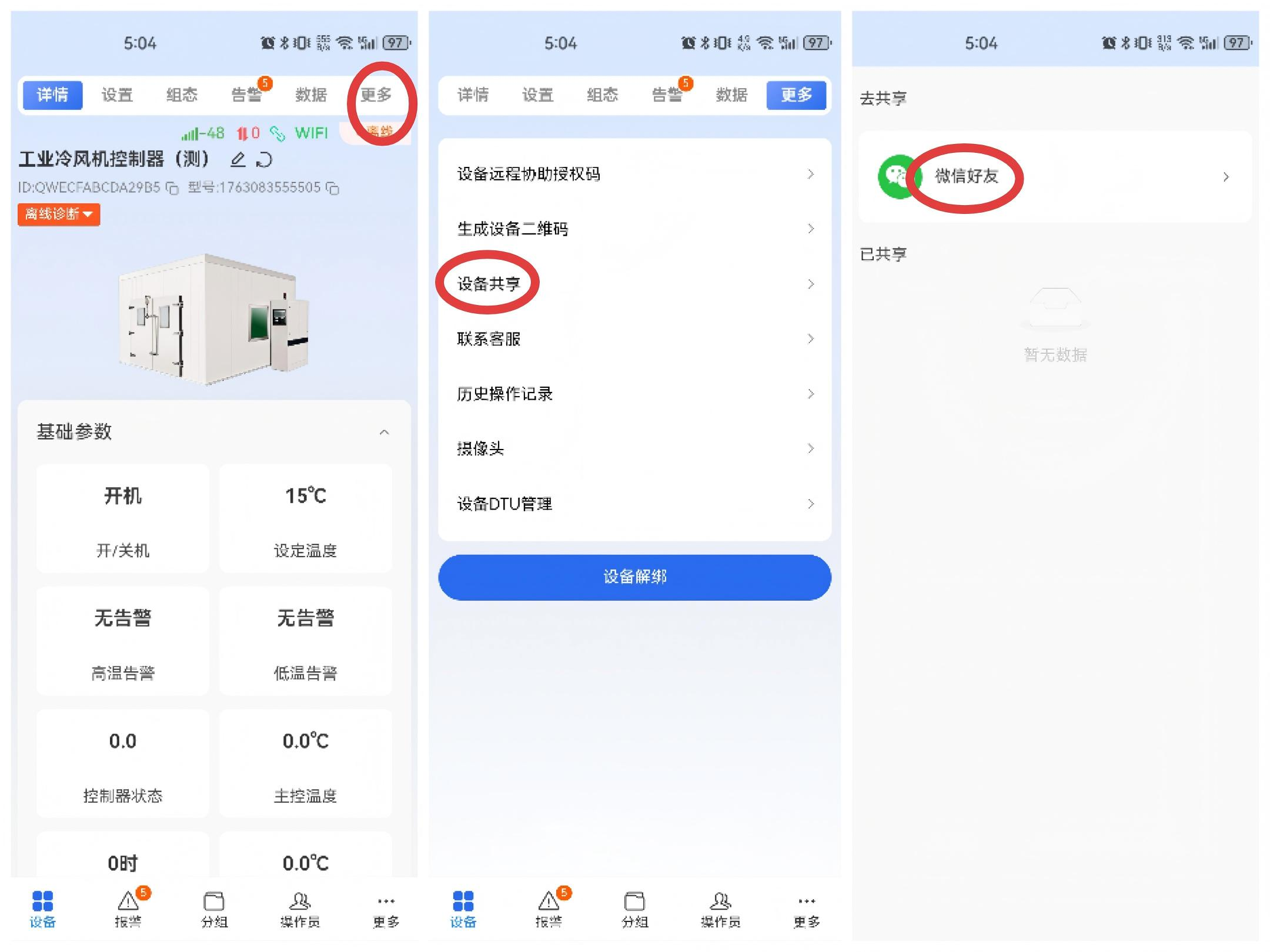
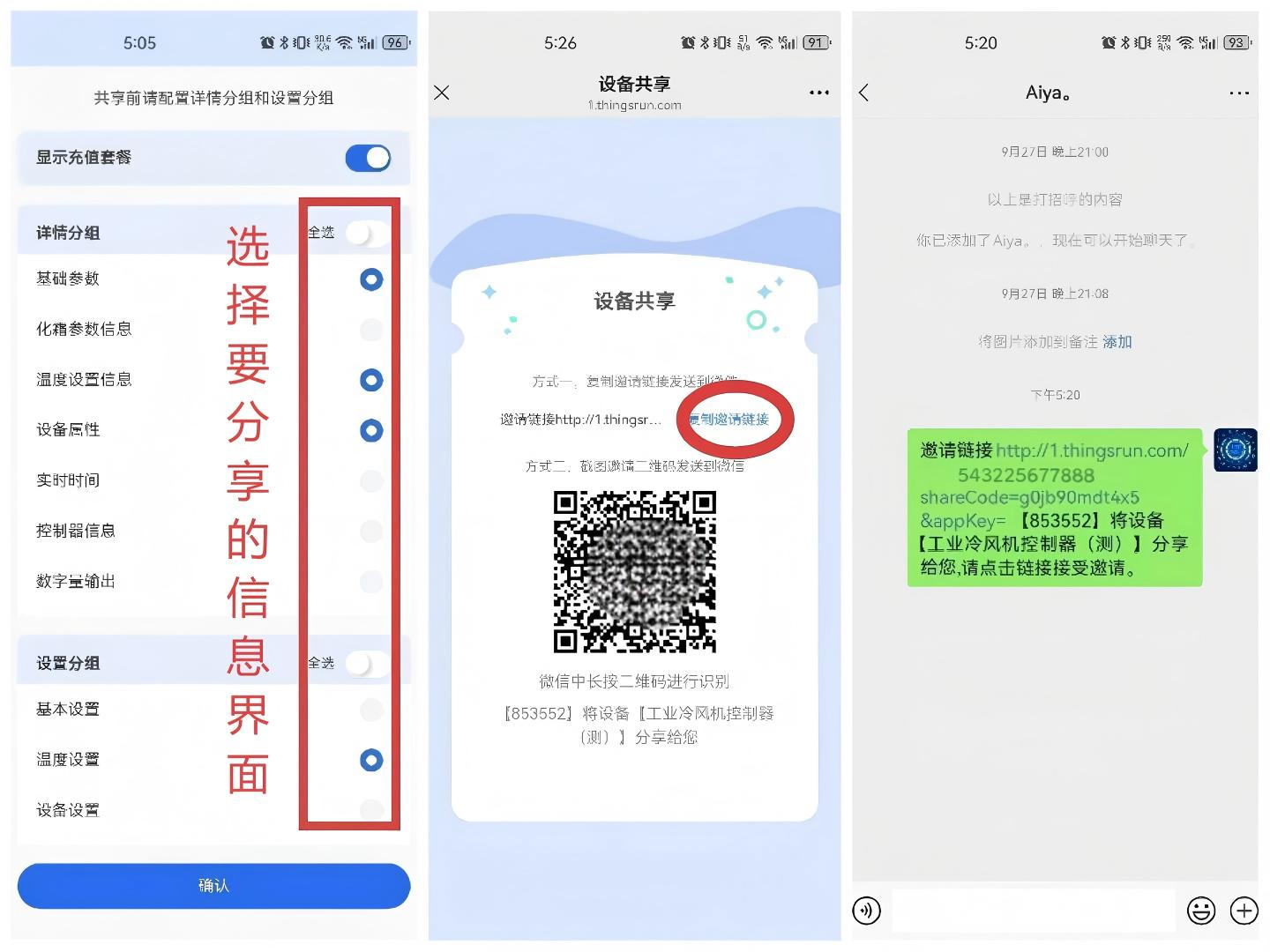
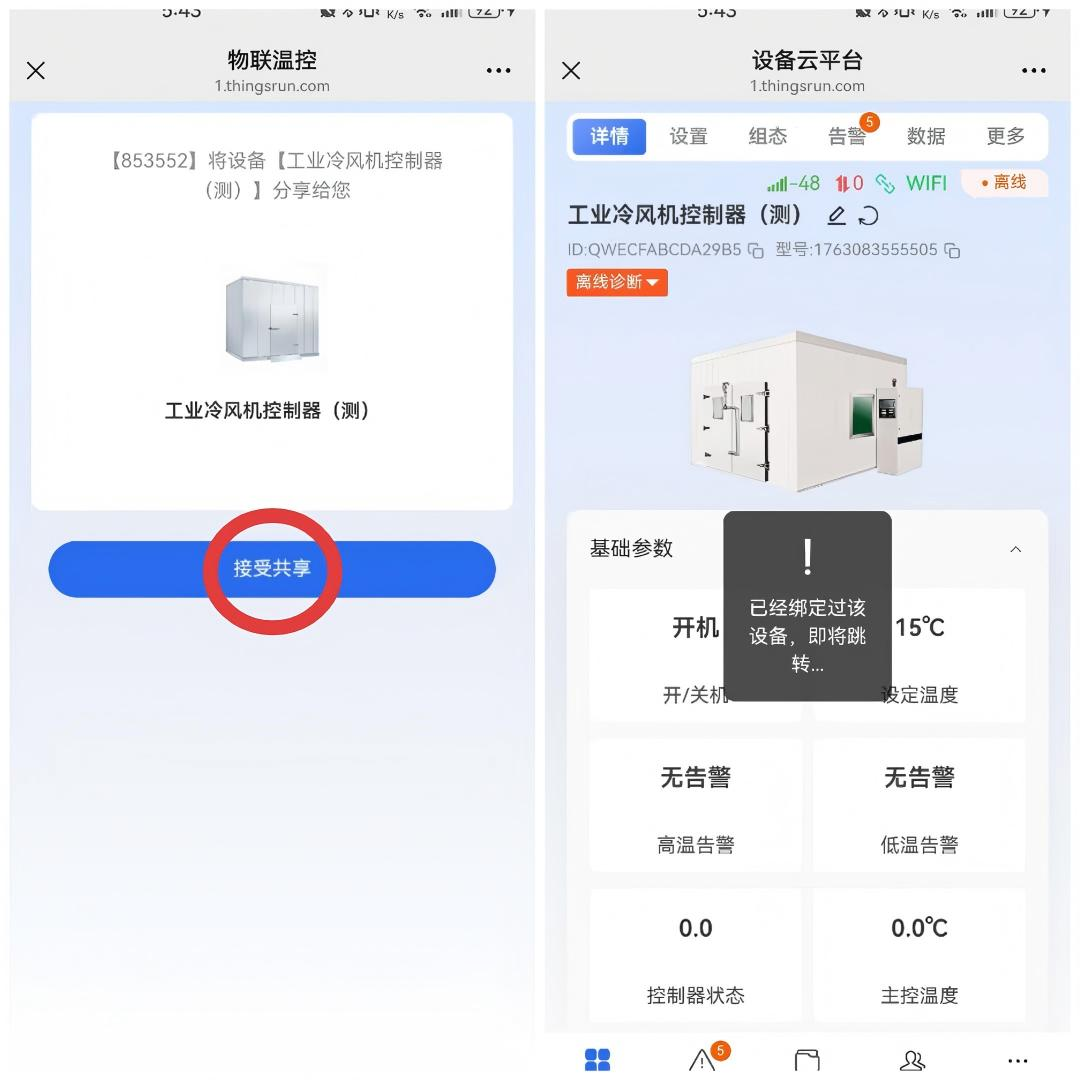
1.11 Device Sharing
You can share the device with others through device sharing operation.
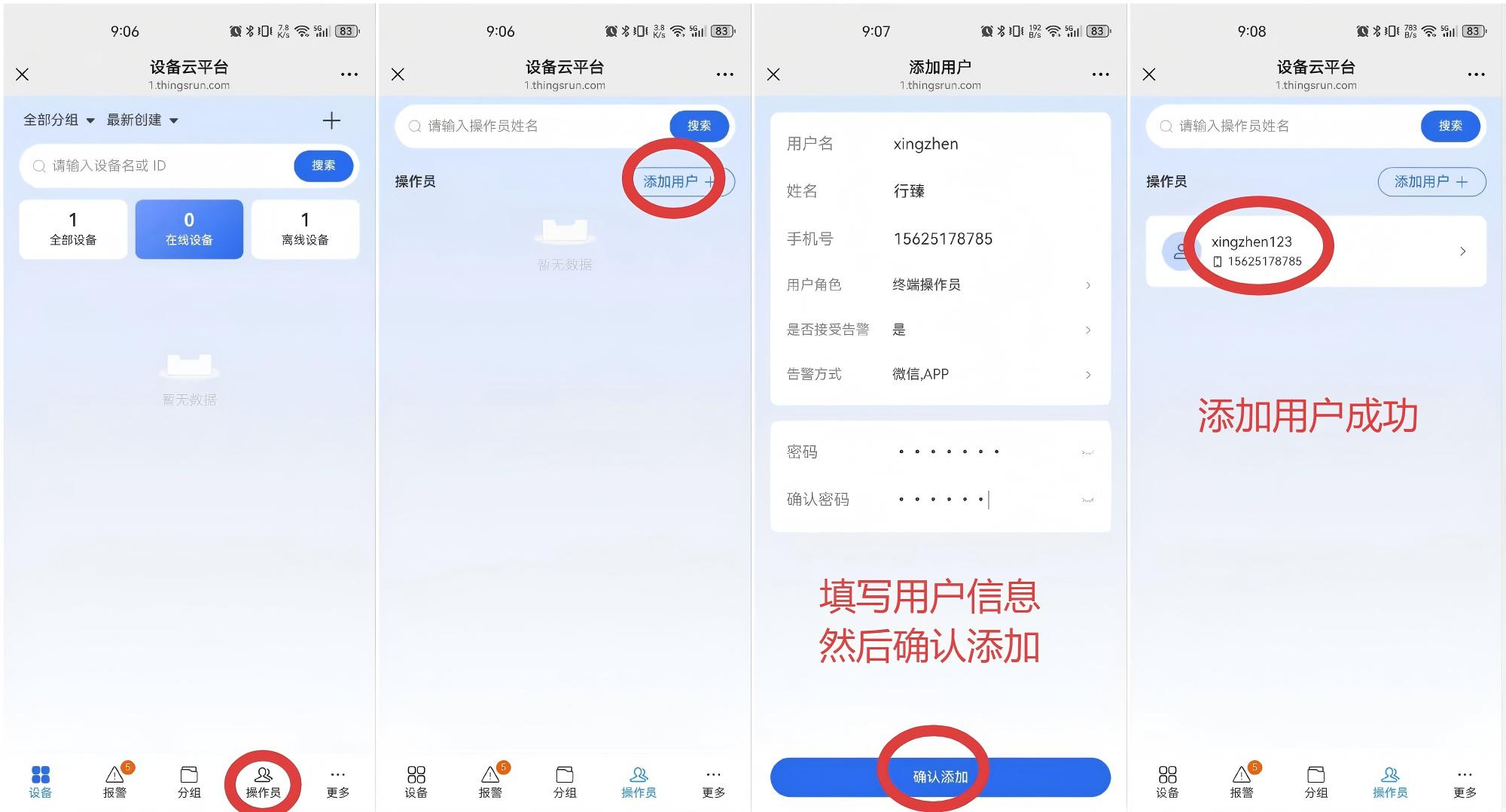
1.12 Operators
Operators are users at the next level of terminal administrators. Terminal administrators create and manage operator users.
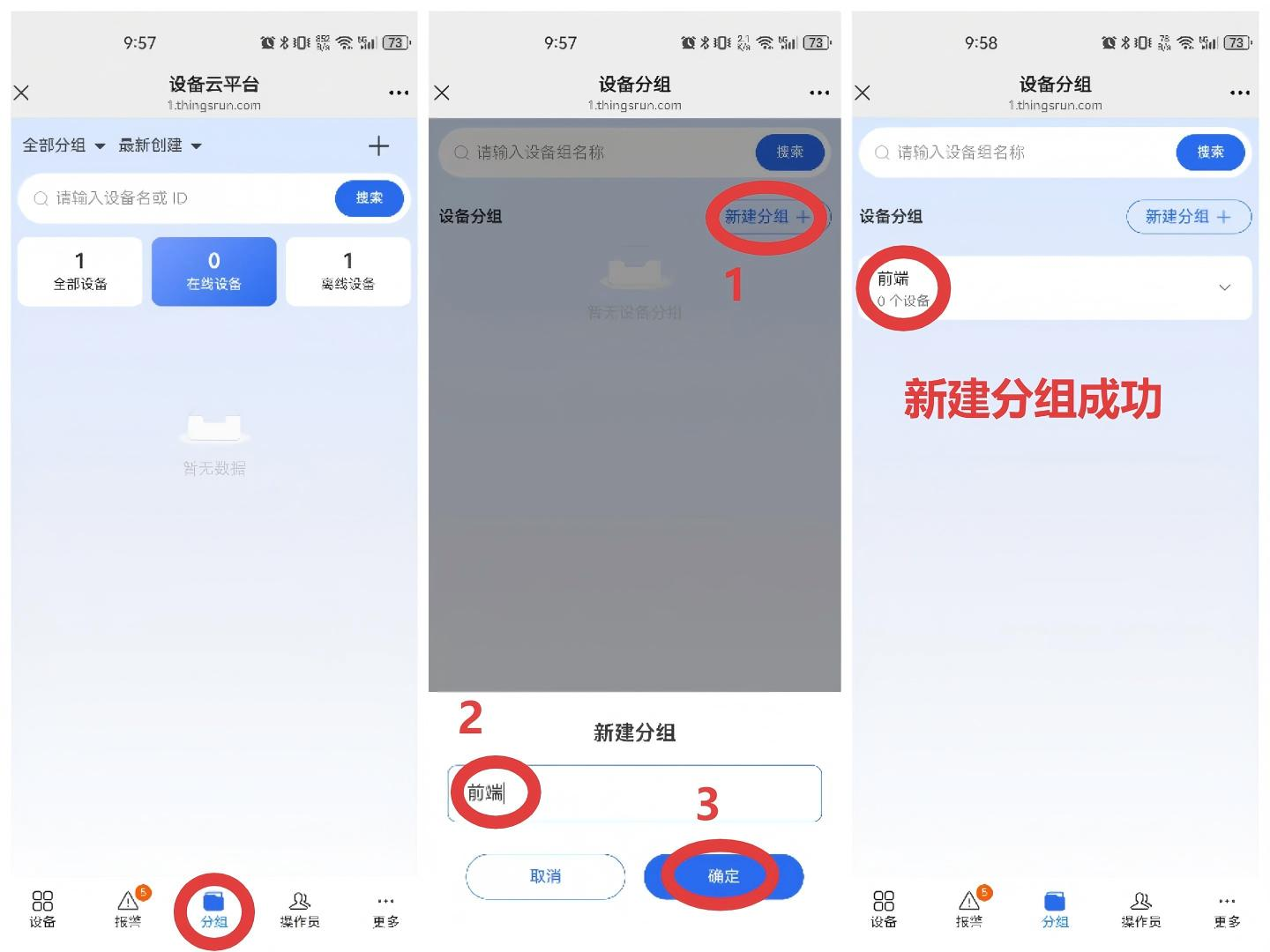
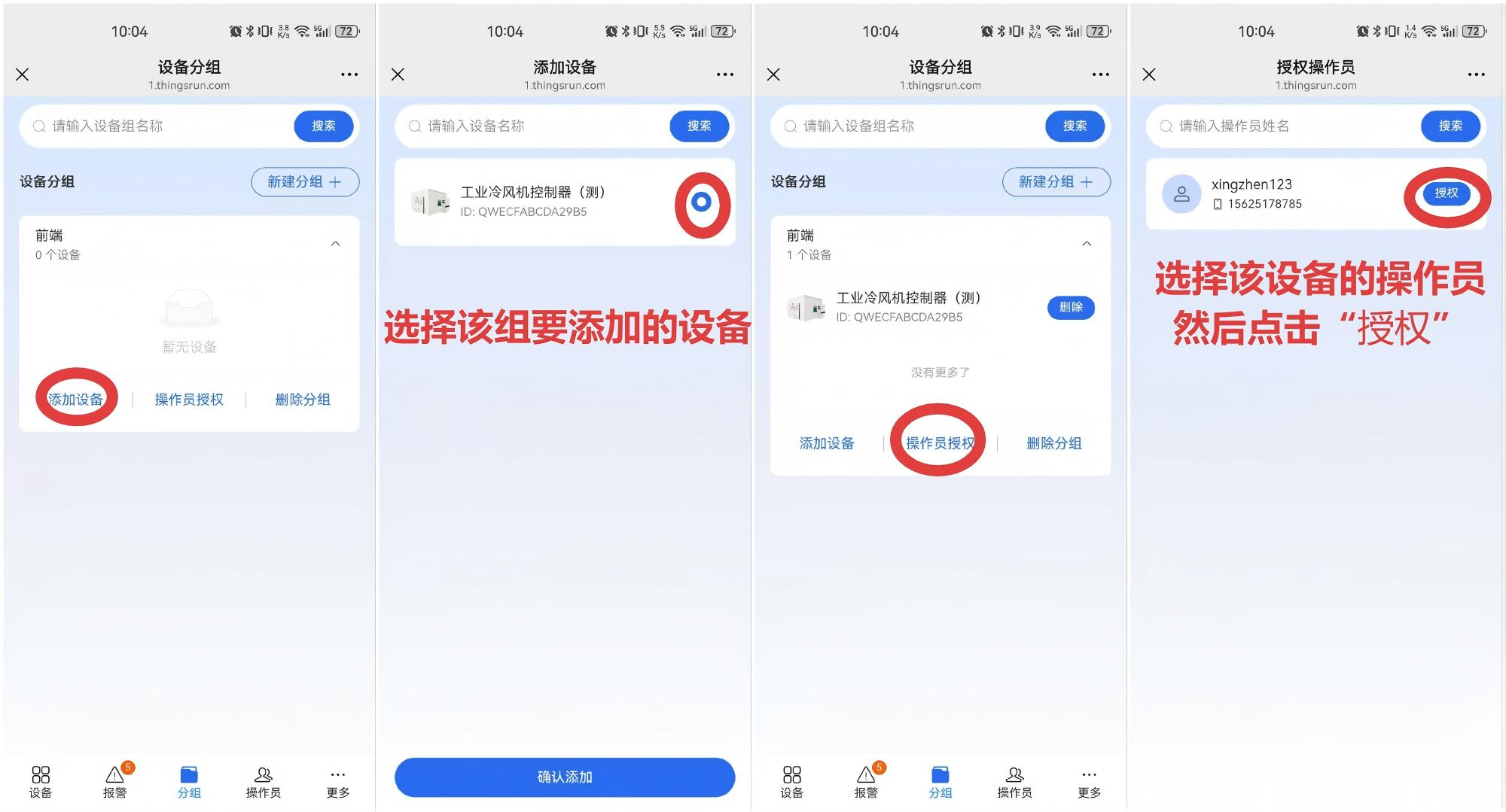
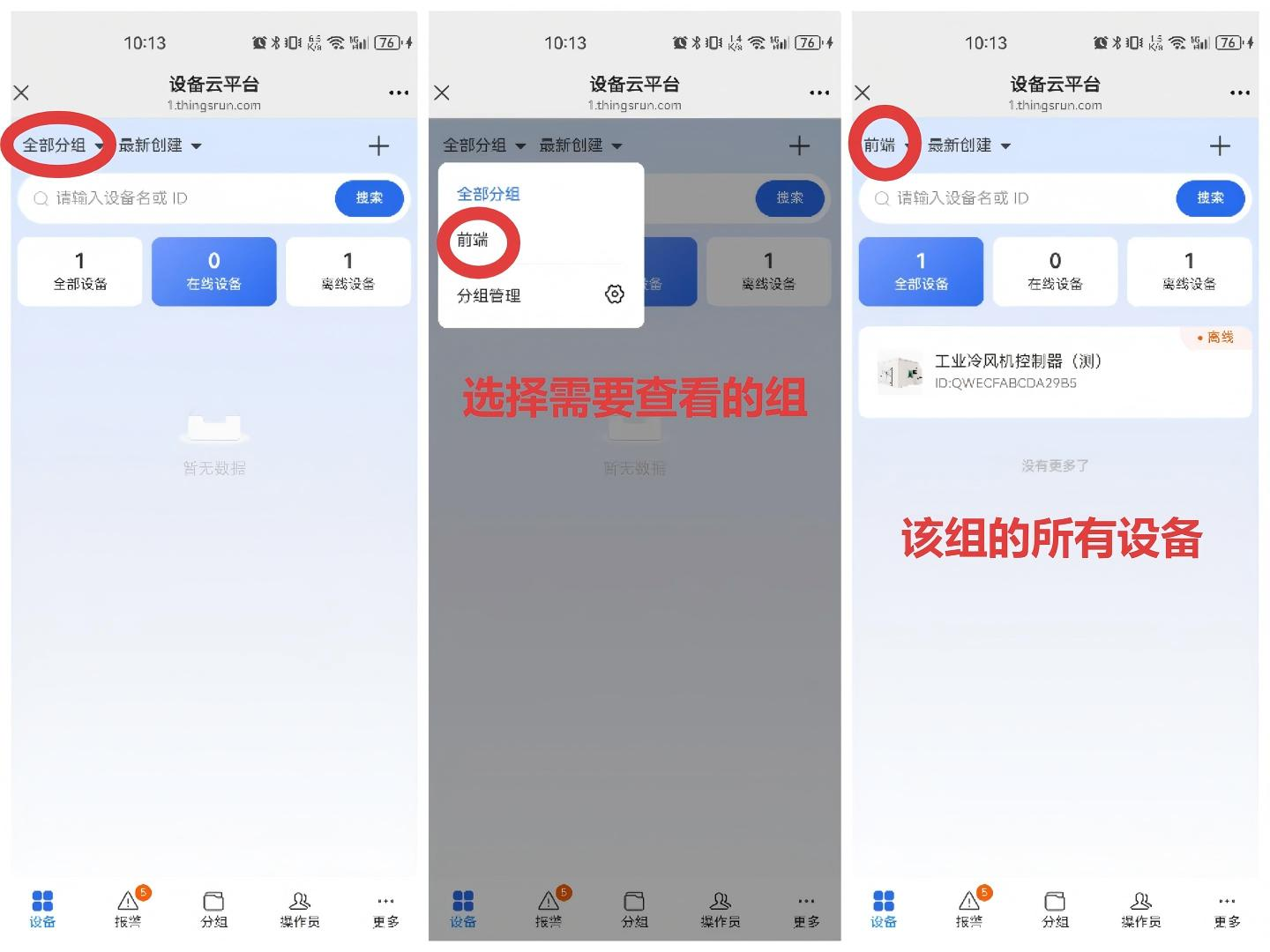
1.13 Device Grouping
You can group devices on the mobile phone for easy viewing.
2. Mobile Application
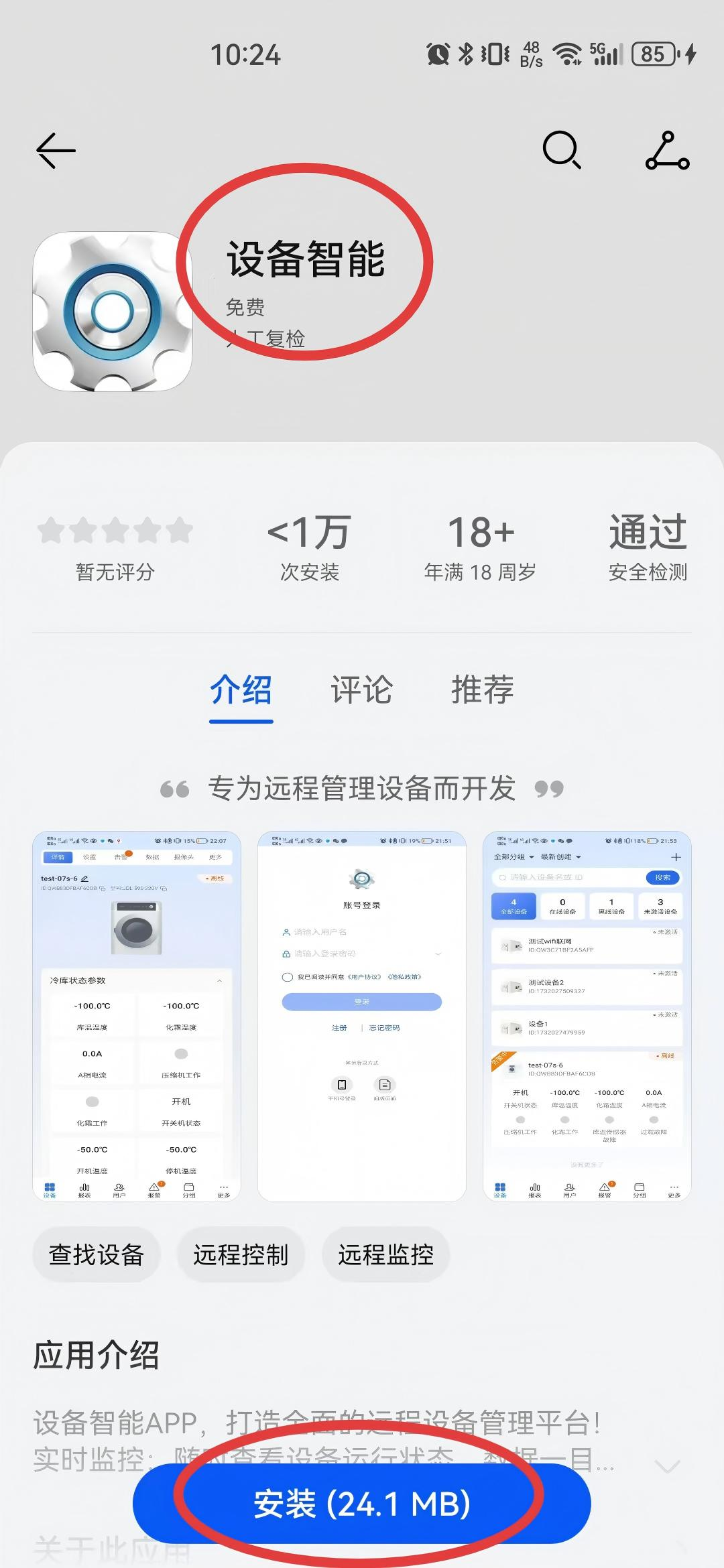
In the mobile application store, enter "设备智能" (Device Smart), click Install. The usage method of the mobile APP is similar to the WeChat official account
3. Contact Us
Company Information
- Company Name: Beijing Xingzhen Technology Co., Ltd.
- Company Address: Room 519, Building 1, No. 10 Longyu North Street, Changping District, Beijing
- R&D Center: A16-3A, Chuangxinggang Changban University Innovation Park, No. 21 Changyuan Road, Tianhe District, Guangzhou
- Contact Person: Li Zhongyou
- Phone: 15625178785