Xiaohei DTU User Manual

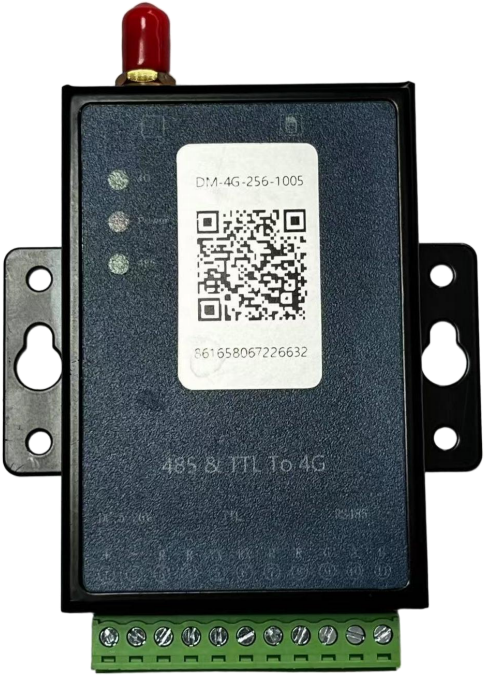
1. Features
- 4G CAT1 full network module
- Support remote program upgrade and parameter modification;
- Support 9~26V wide voltage power supply, the power supply has overvoltage, surge, reverse connection protection;
- RS485 lightning protection, surge protection, overvoltage, overcurrent, electrostatic protection, with anti-interference ability;
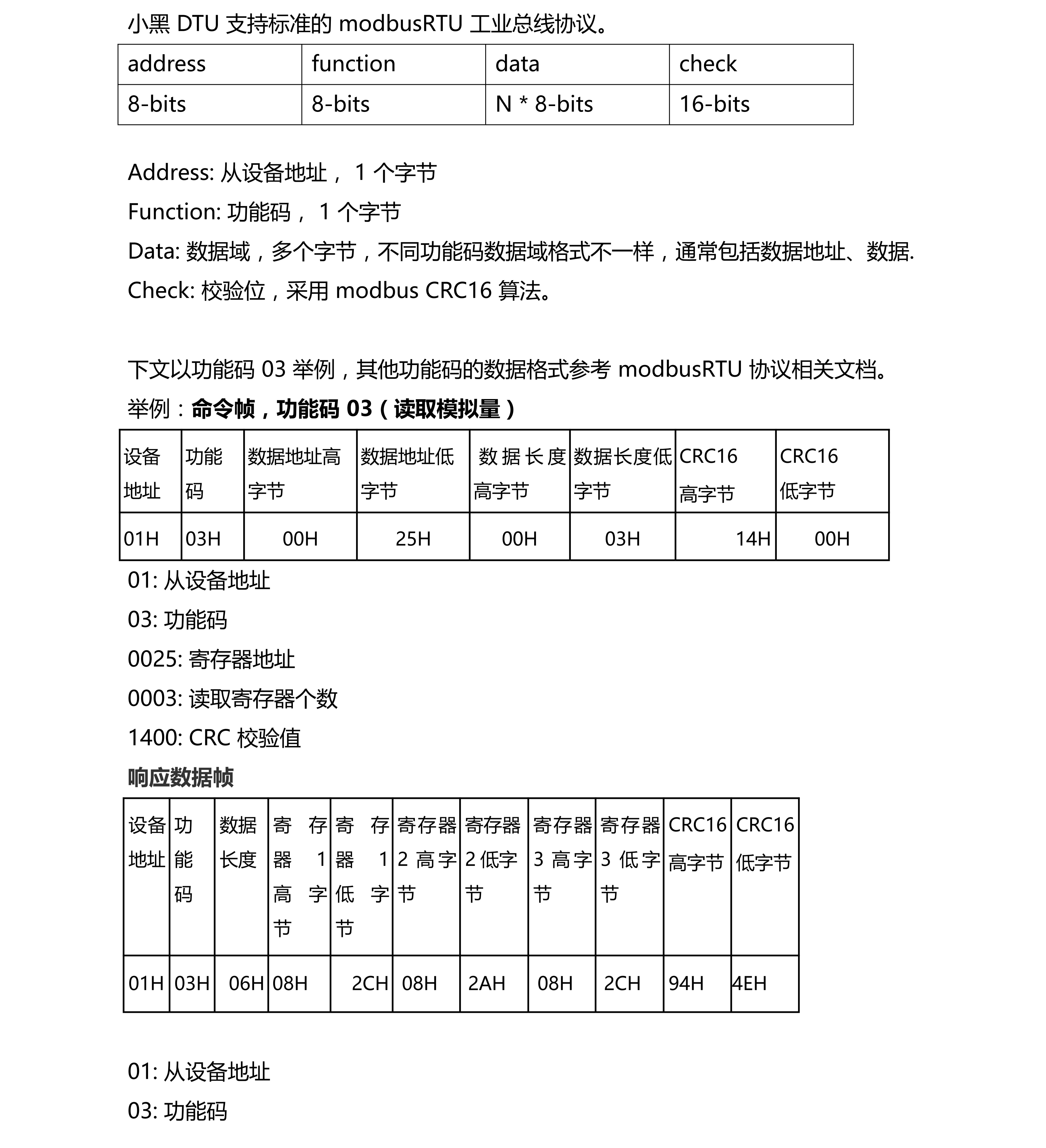
- RS485 communication uses MODBUS RTU protocol, widely supports various industrial controllers.
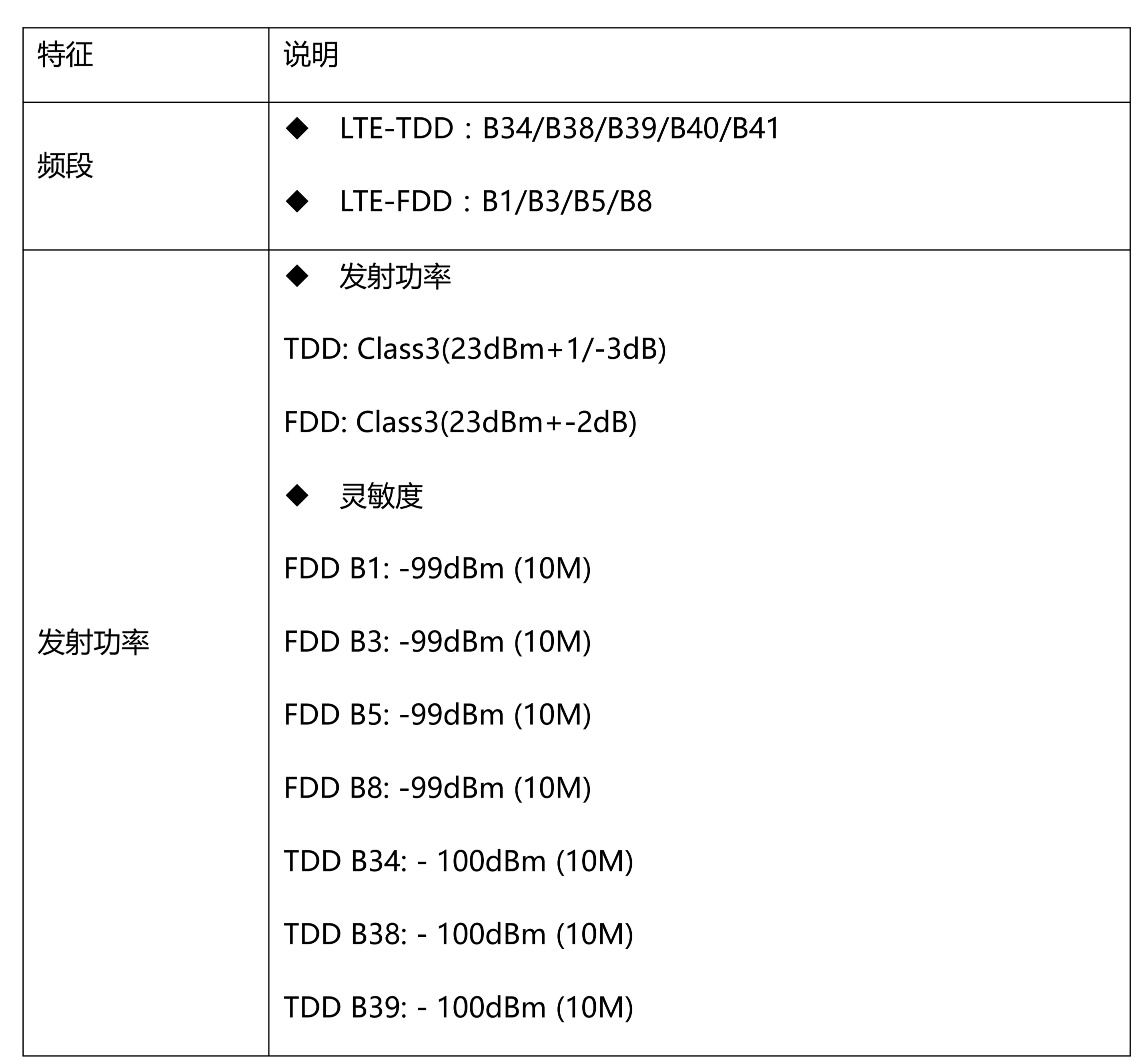
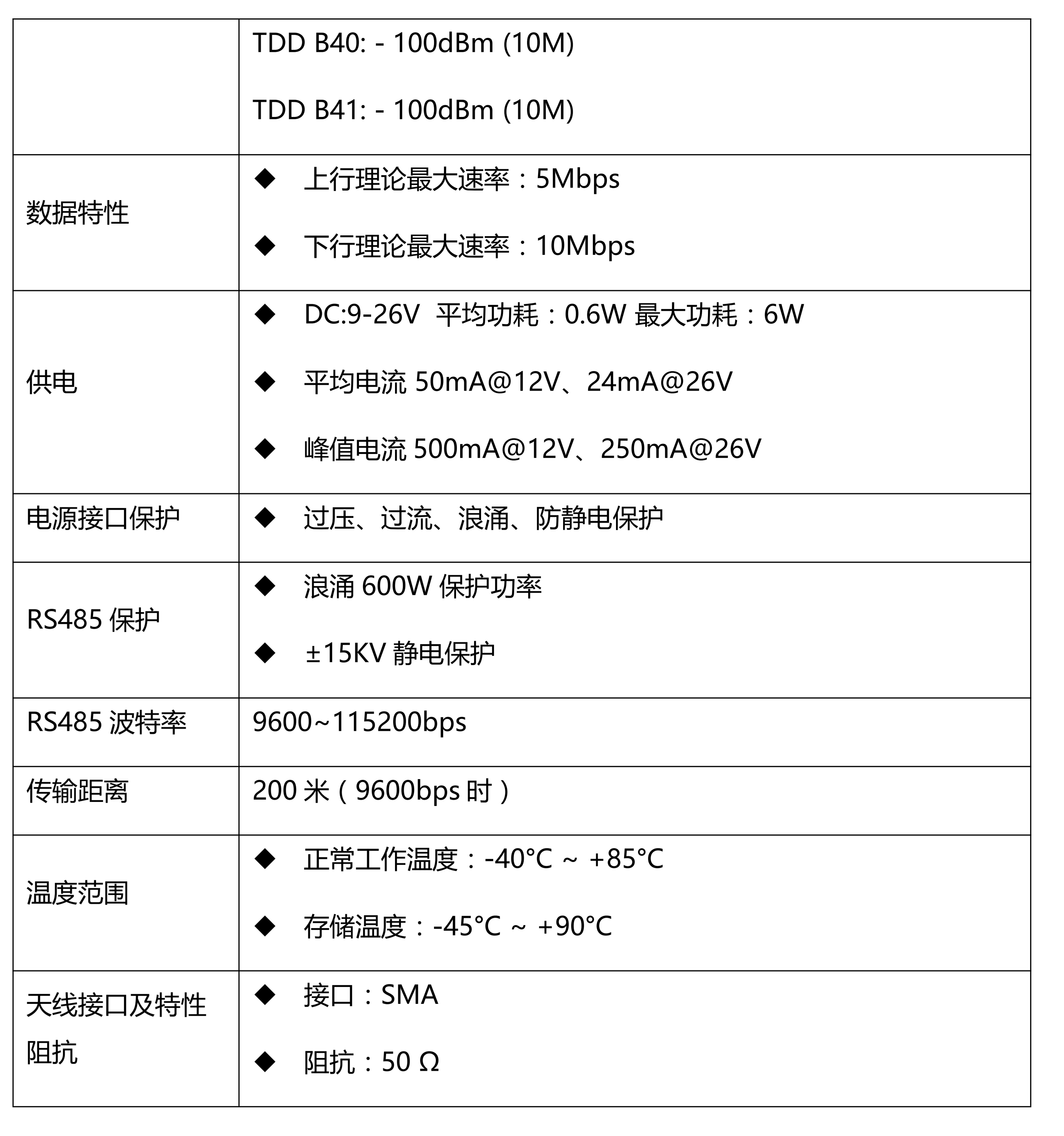
2. Module Basic Parameters
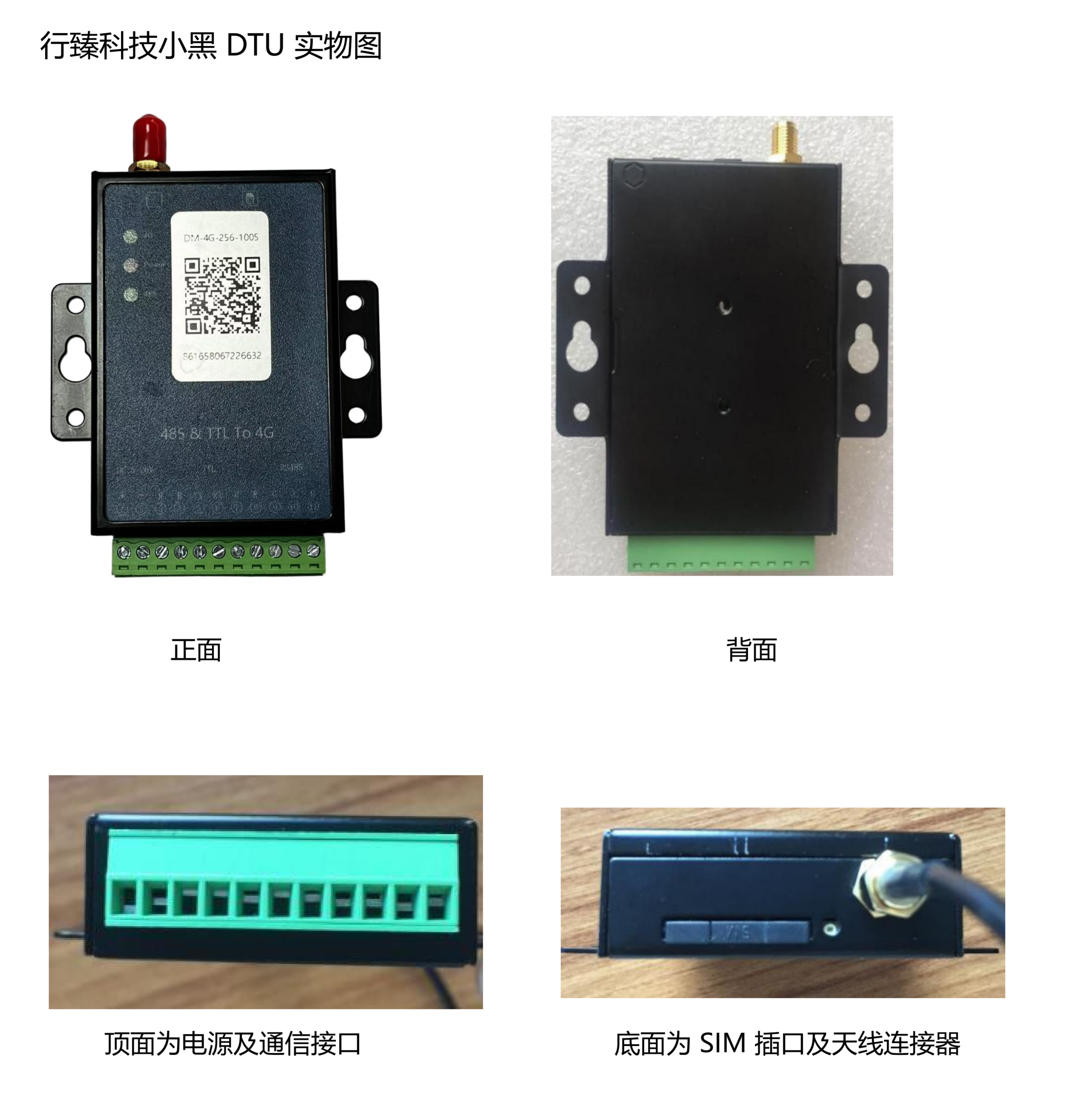
3. DTU Physical Diagram
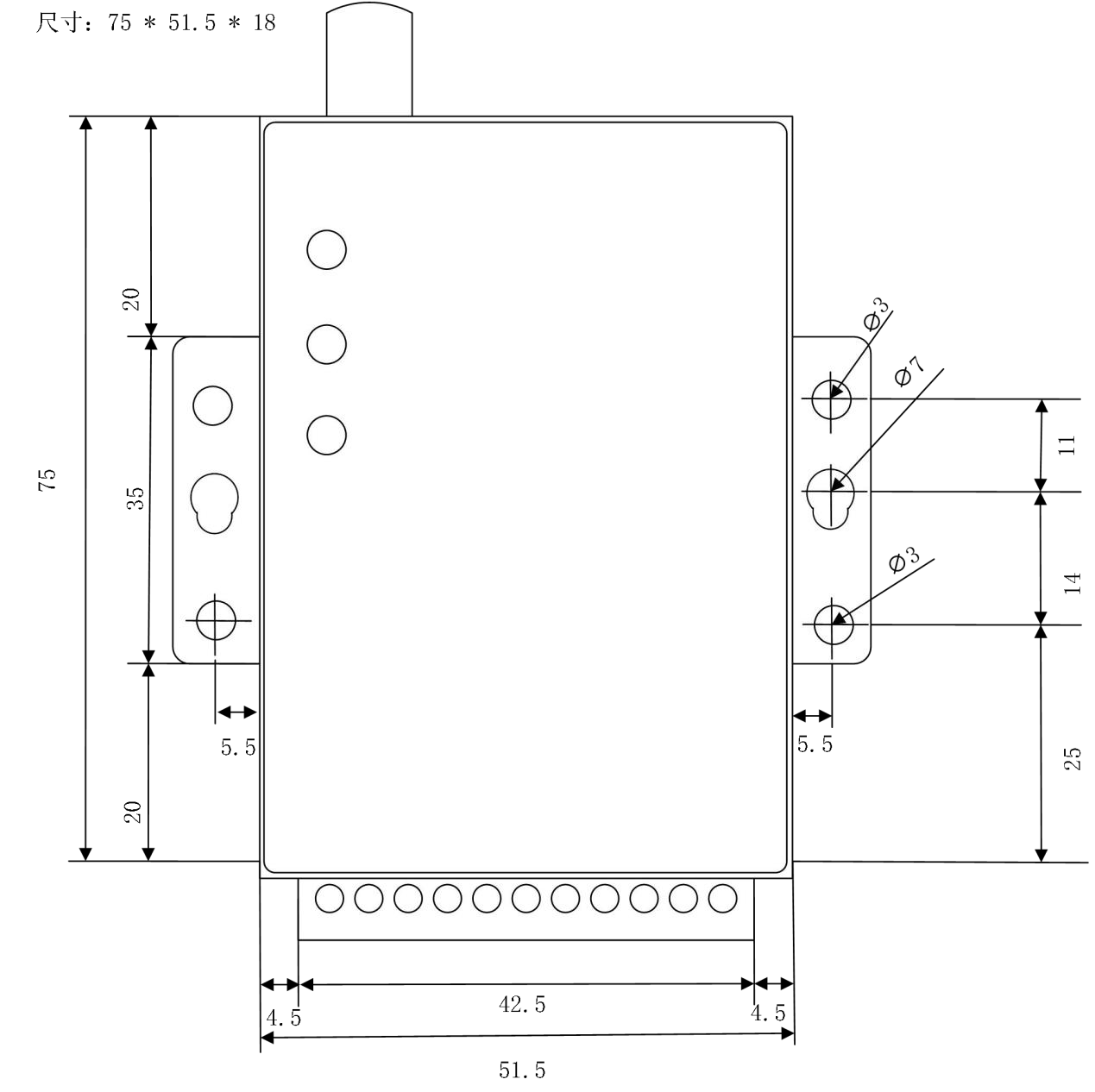
4. DTU Dimensions
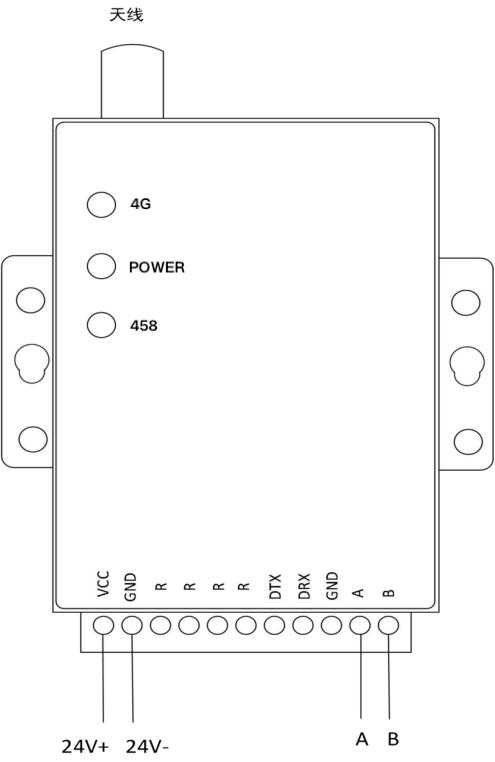
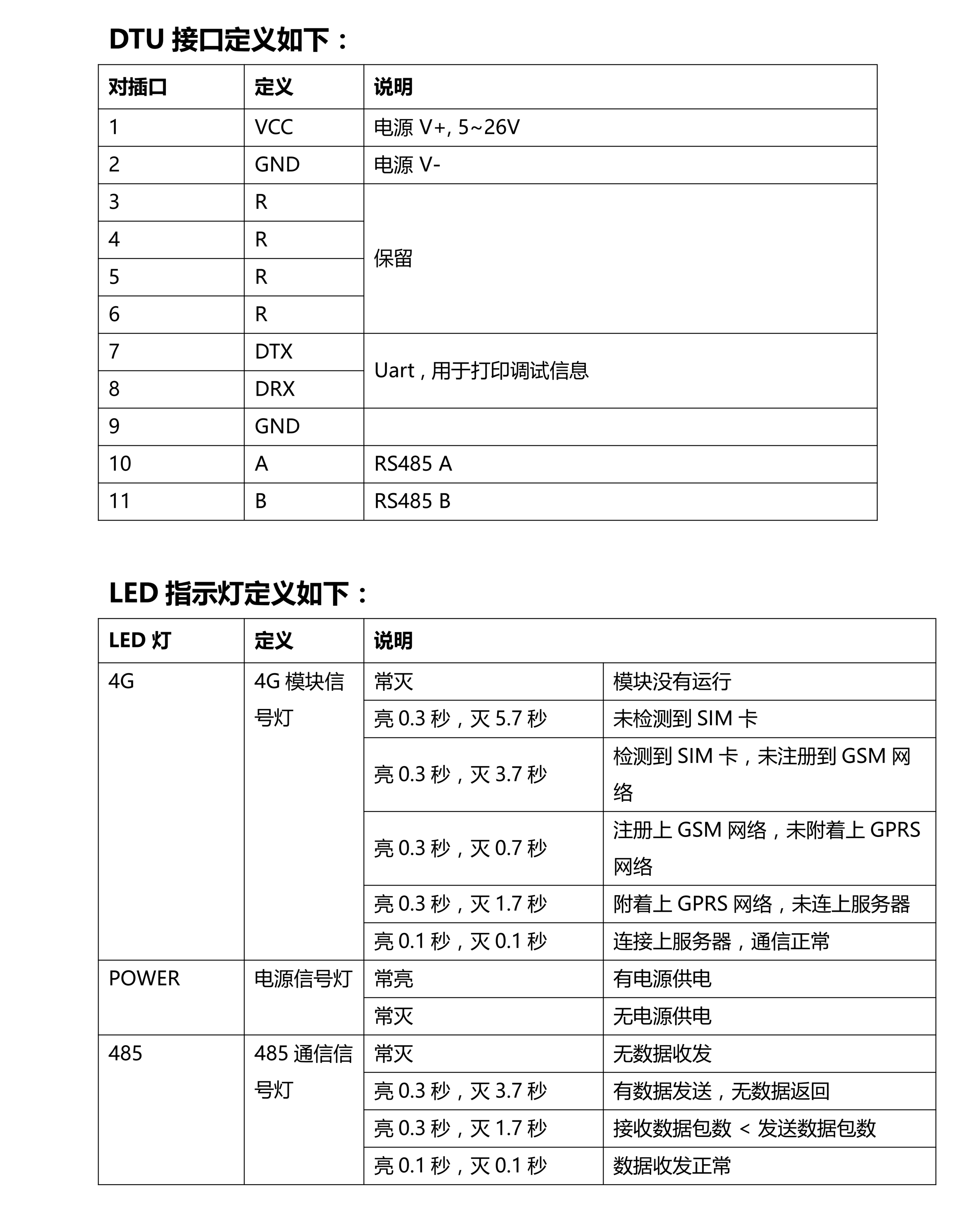
5. DTU Interface Definition
6. Communication Protocol
7. Cloud Platform Quick Start
7.1 Follow Official Account
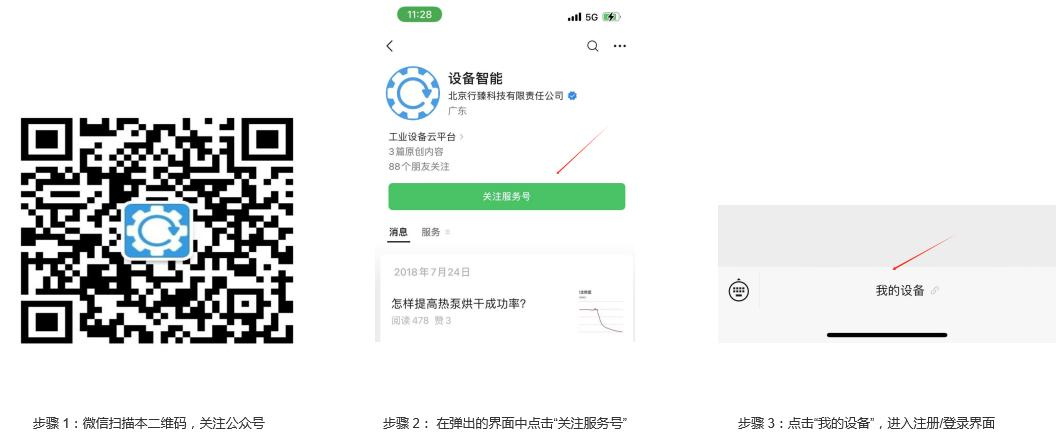
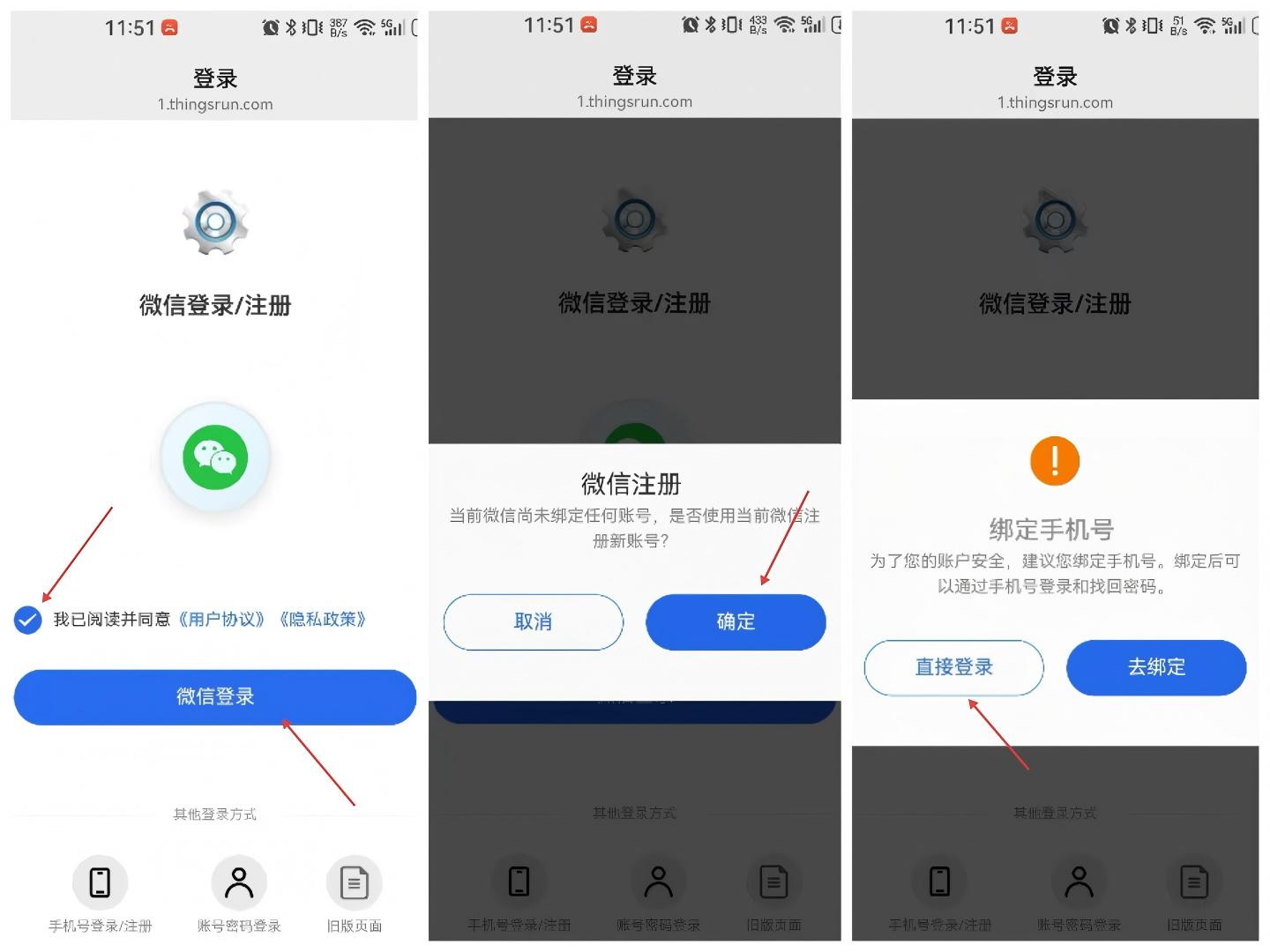
7.2 WeChat Register Administrator Account
If you have already registered an administrator account, skip this section.
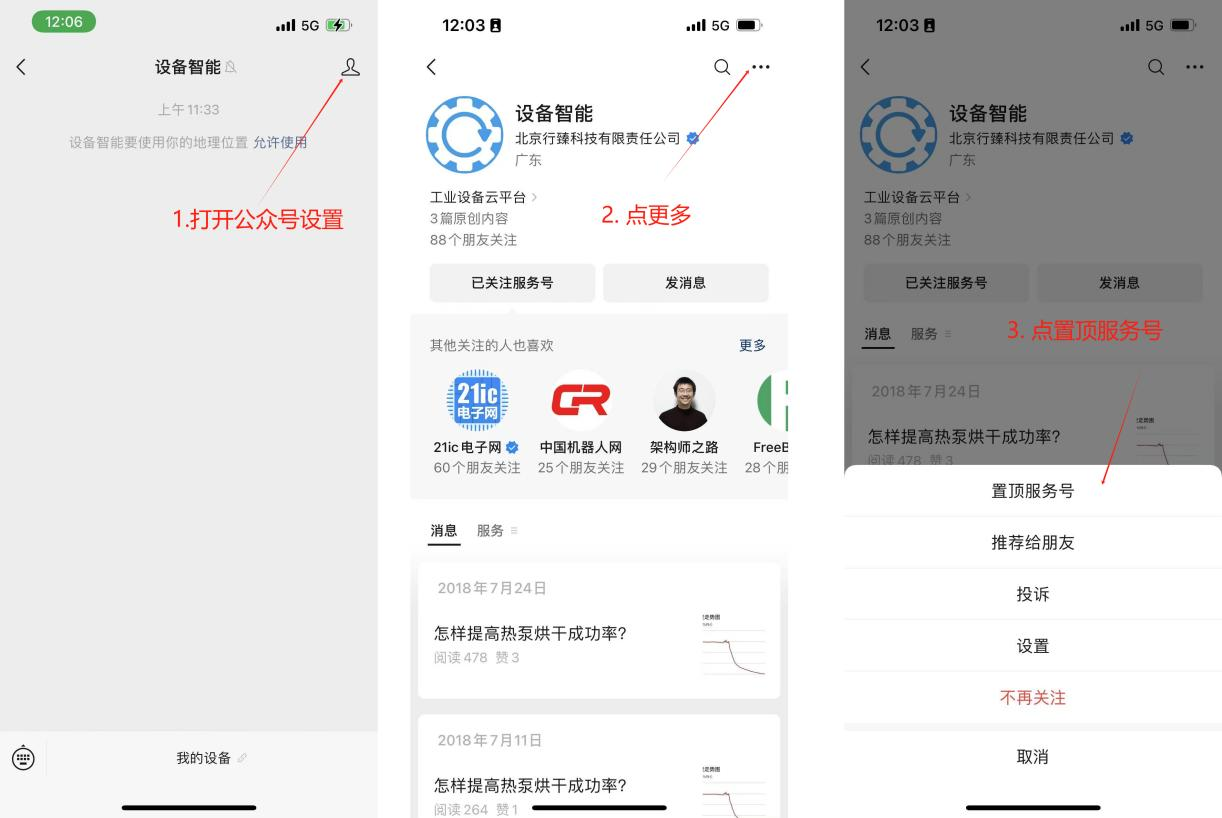
7.3 Pin Official Account
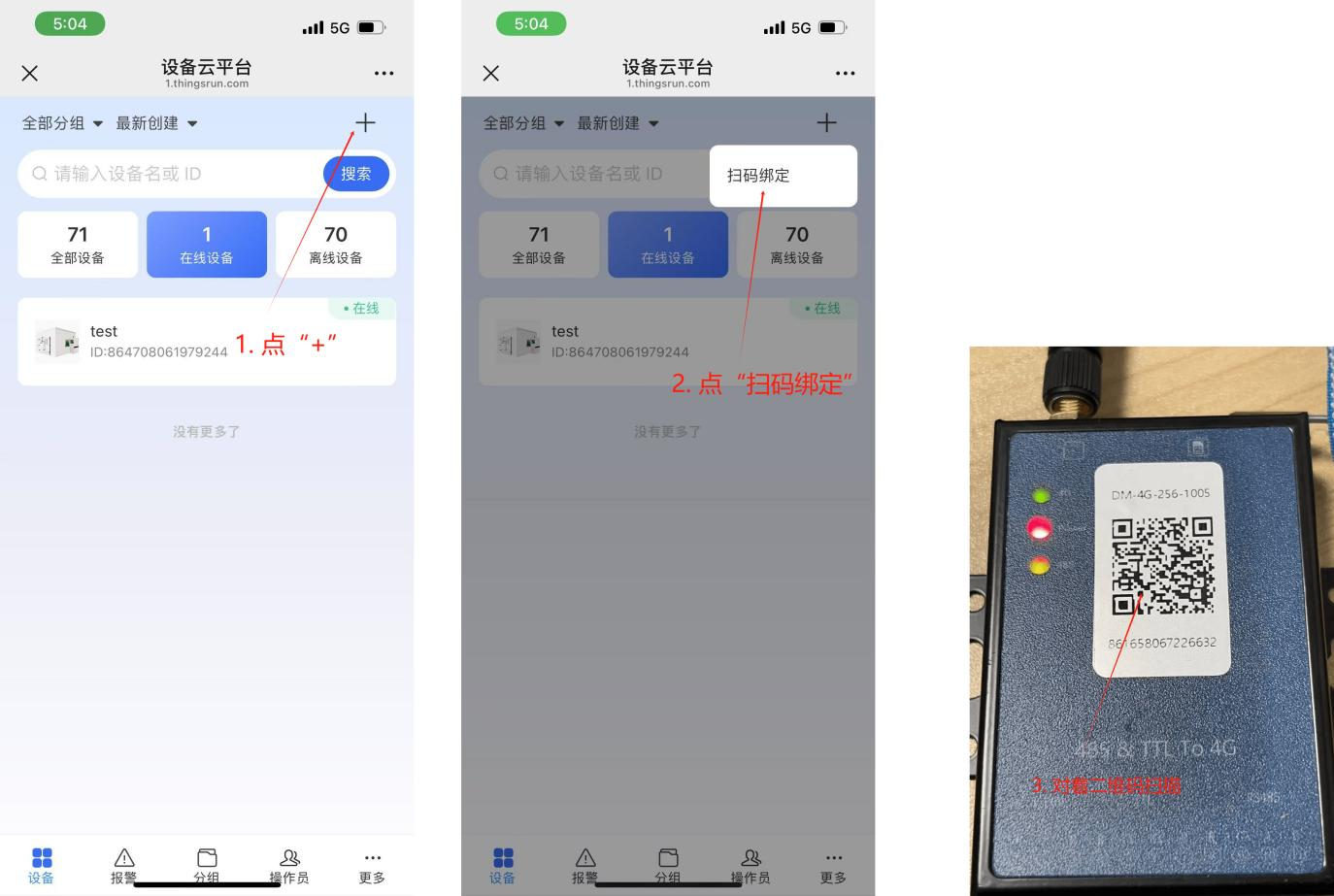
7.4 Add Device - Scan and Bind
After users get the DTU, the device has not been in the customer account, and the device can be added by scanning the QR code on the front of the DTU with WeChat. The first user who successfully scans and binds is the administrator user of the DTU.
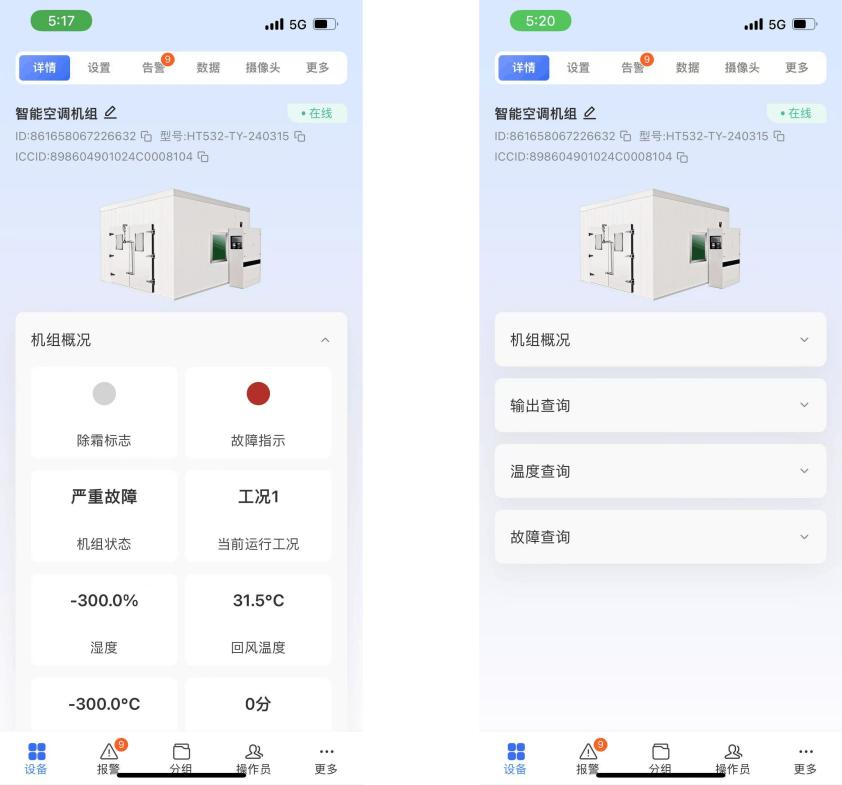
7.5 Device Details
Device details mainly display the working status of the device, usually read-only, usually cannot be set. You can pull down and collapse the parameter list.
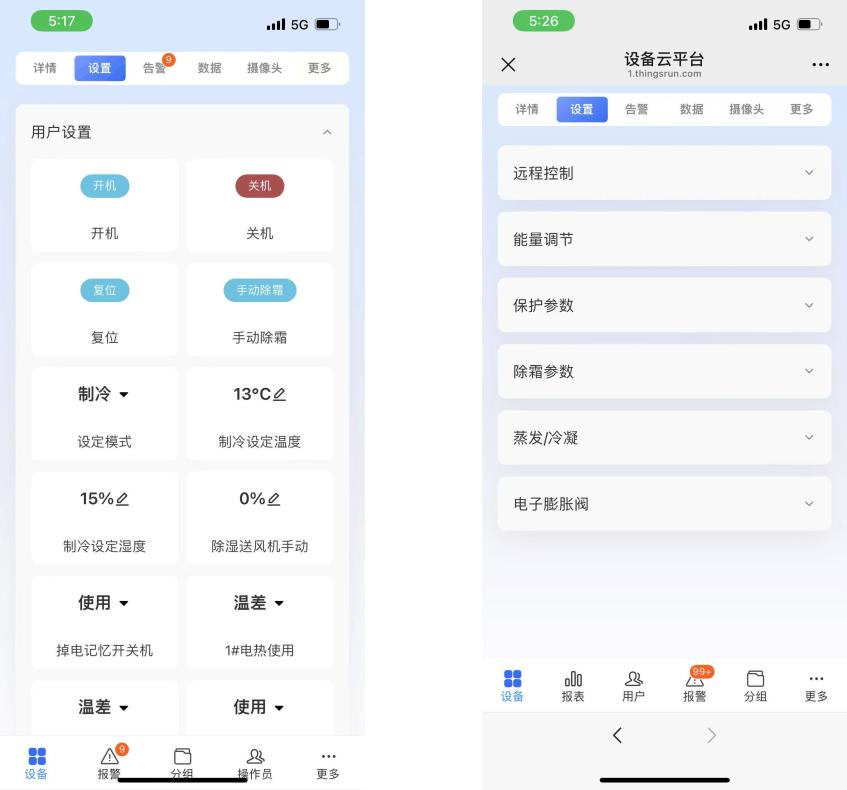
7.6 Settings
The settings page is mainly used to set parameters, which can be pulled down and collapsed.
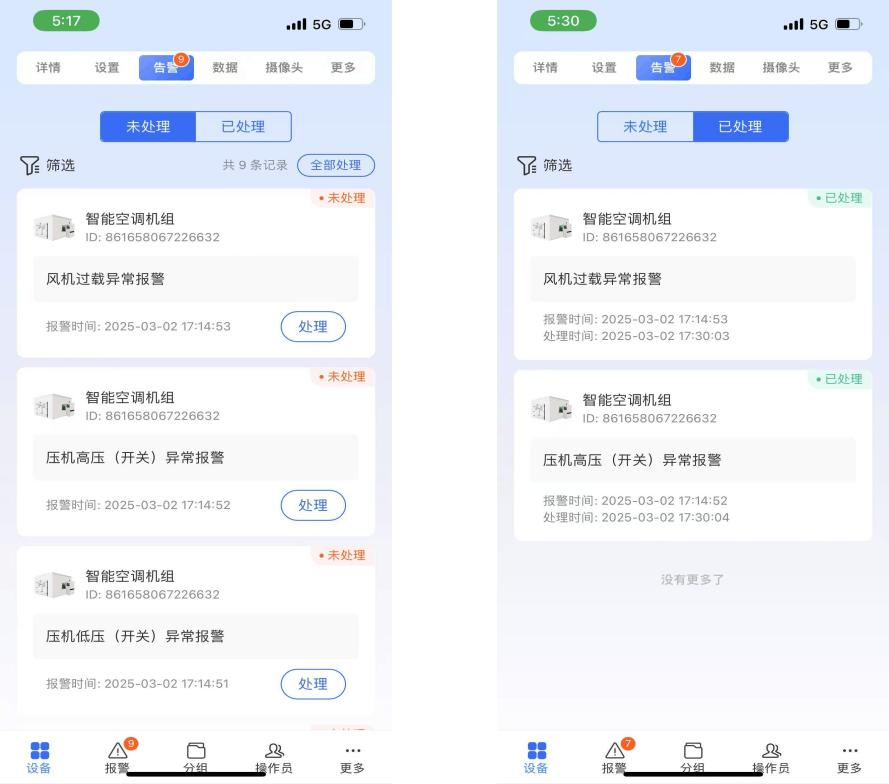
7.7 Alerts
Alerts are divided into unprocessed alerts and processed alerts. Click "Process" in "Unprocessed Alerts", then the record becomes "Processed"
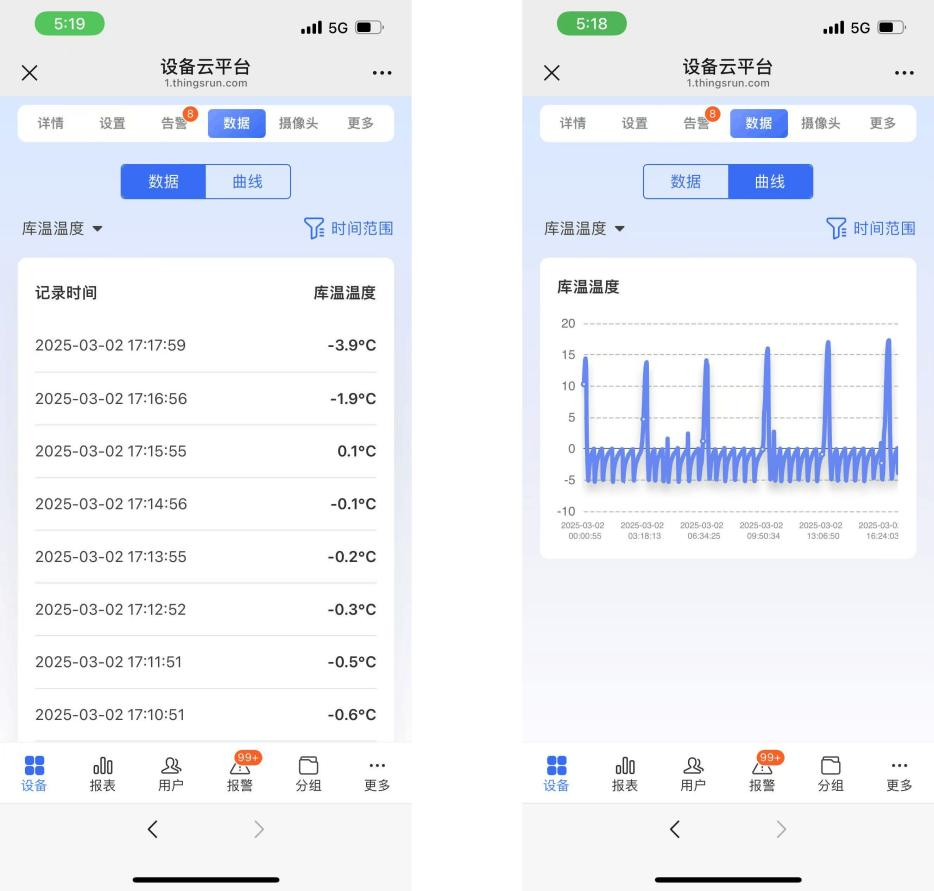
7.8 Data and Curves
Can display historical data and curves of some parameters
8. Mobile Application
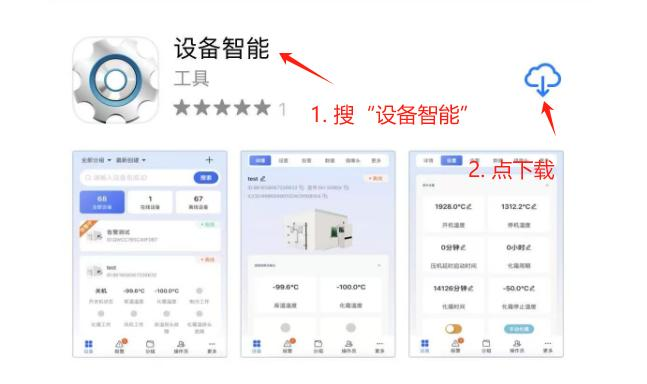
In the mobile application store, enter "设备智能" (Device Smart), click download.
The usage method of the mobile APP is similar to the WeChat official account.
Contact Us
Company Information
- Company Name: Beijing Xingzhen Technology Co., Ltd.
- Company Address: Room 519, Building 1, No. 10 Longyu North Street, Changping District, Beijing
- R&D Center: A16-3A, Chuangxinggang Changban University Innovation Park, No. 21 Changyuan Road, Tianhe District, Guangzhou
- Contact Person: Li Zhongyou
- Phone: 15625178785