
Scan and Bind Manual
Video Tutorial
Scan and Bind
Log in to the terminal administrator account
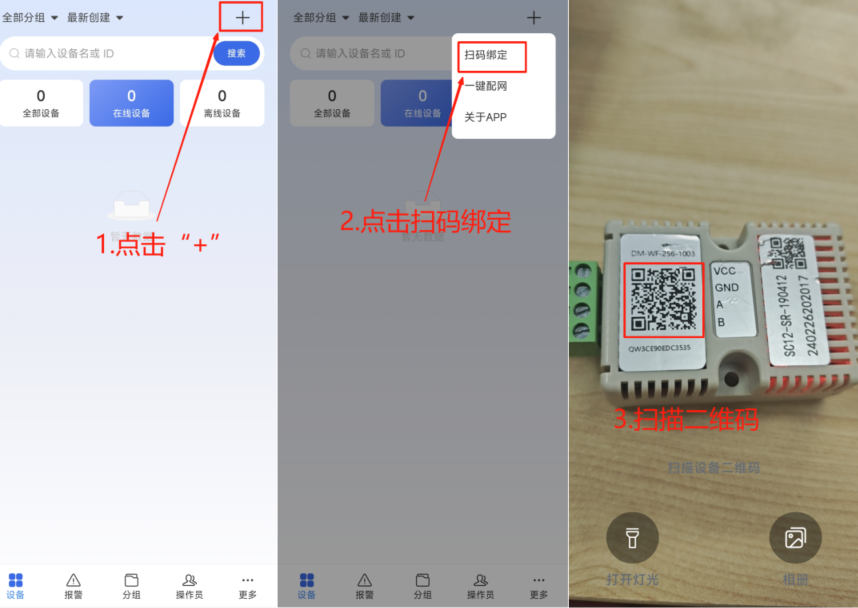
Click "+" in the upper right corner of the device interface
Then click Scan and Bind
Enter the scanning interface, where you can scan the QR code of the device you want to bind
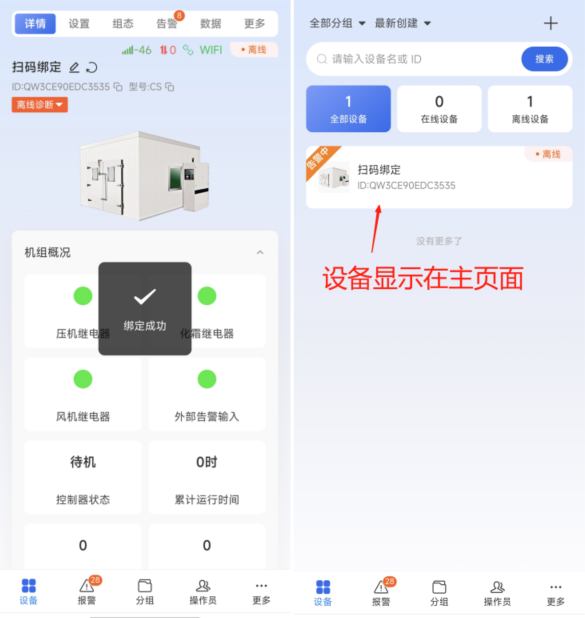
After scanning, it will automatically jump to the device details page and display binding successful, and the device will also be displayed on this interface when returning to the device page
Notes
If the scan binding fails and displays "Sorry, this device has been bound by another terminal administrator, association failed", it means the device has been bound by another terminal administrator. As shown in the figure below 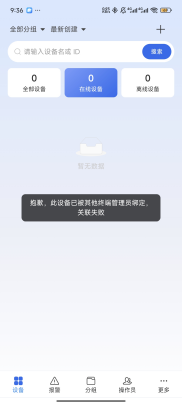
There are two solutions to the above problem:
- Contact the bound terminal administrator to unbind, and then scan the code again to bind.
- Contact the bound terminal administrator to share the device, accept the share, and the device will be bound.